A default Enterprise Calendar configuration could impact your reporting - fix described
Overview
We’re improving performance for reports that use the Enterprise Calendar. To take advantage of these improvements, your Enterprise Calendar must be manually set to a fiscal year calendar on the Oracle Fusion Data Intelligence Administration console Reporting Configuration page. If you keep the default option (Gregorian), your reports will stop working. If you’ve already selected a fiscal calendar as your Enterprise Calendar, or don't use an Enterprise Calendar in your reporting, you can disregard this communication.
What’s the Enterprise Calendar parameter?
Oracle Fusion Data Intelligence is introducing an Enterprise Calendar data pipeline parameter in the 26.R2 content release (expected May 13, 2026). This parameter identifies the fiscal calendar your Oracle Fusion Data Intelligence instance uses as its Enterprise Calendar. When you upgrade to the 26.R2 platform release, the system applies your selected calendar as the Enterprise Calendar. If you already use a fiscal calendar as your Enterprise Calendar, you don’t need to take any action.
What actions do I need to take?
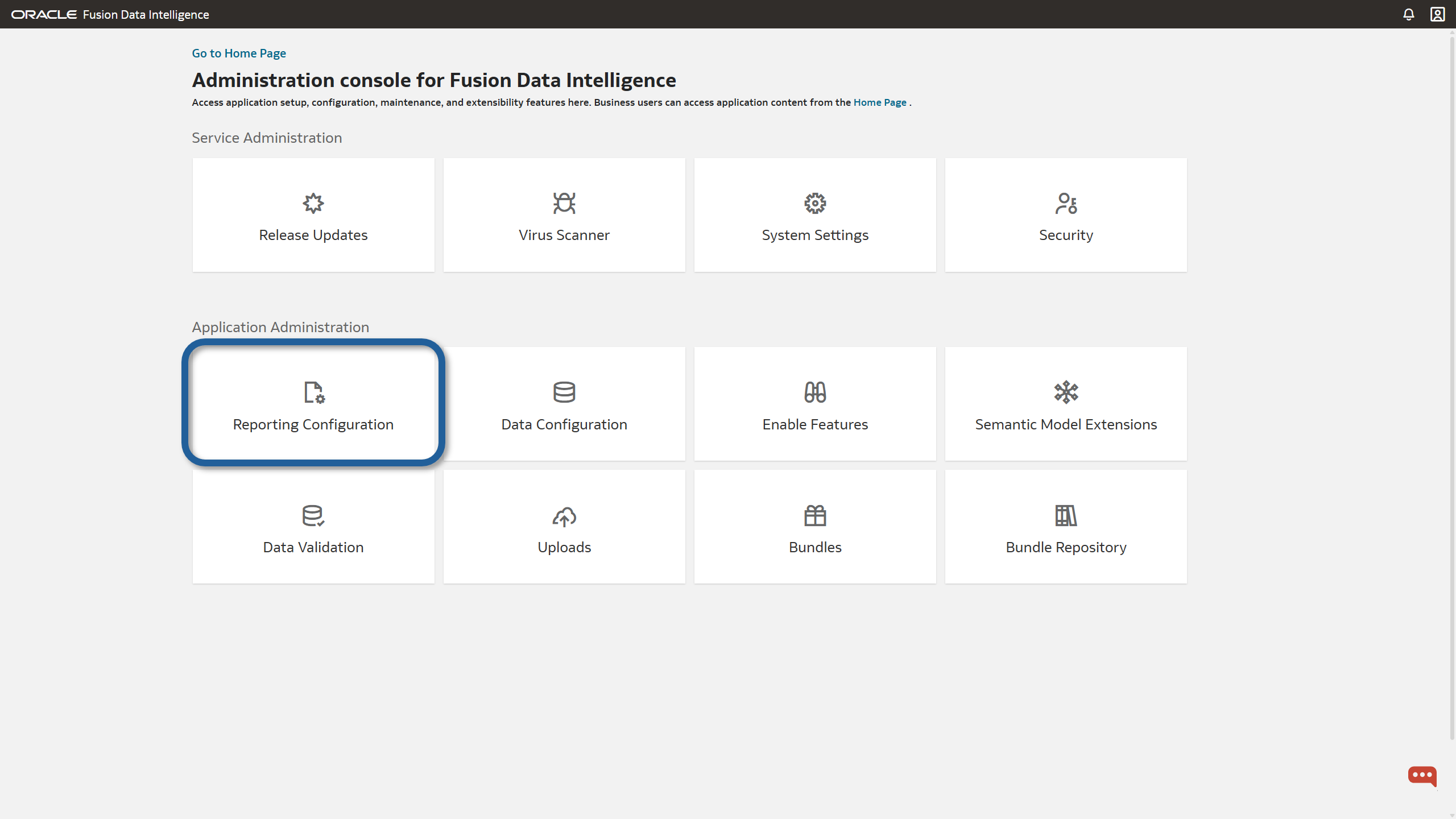
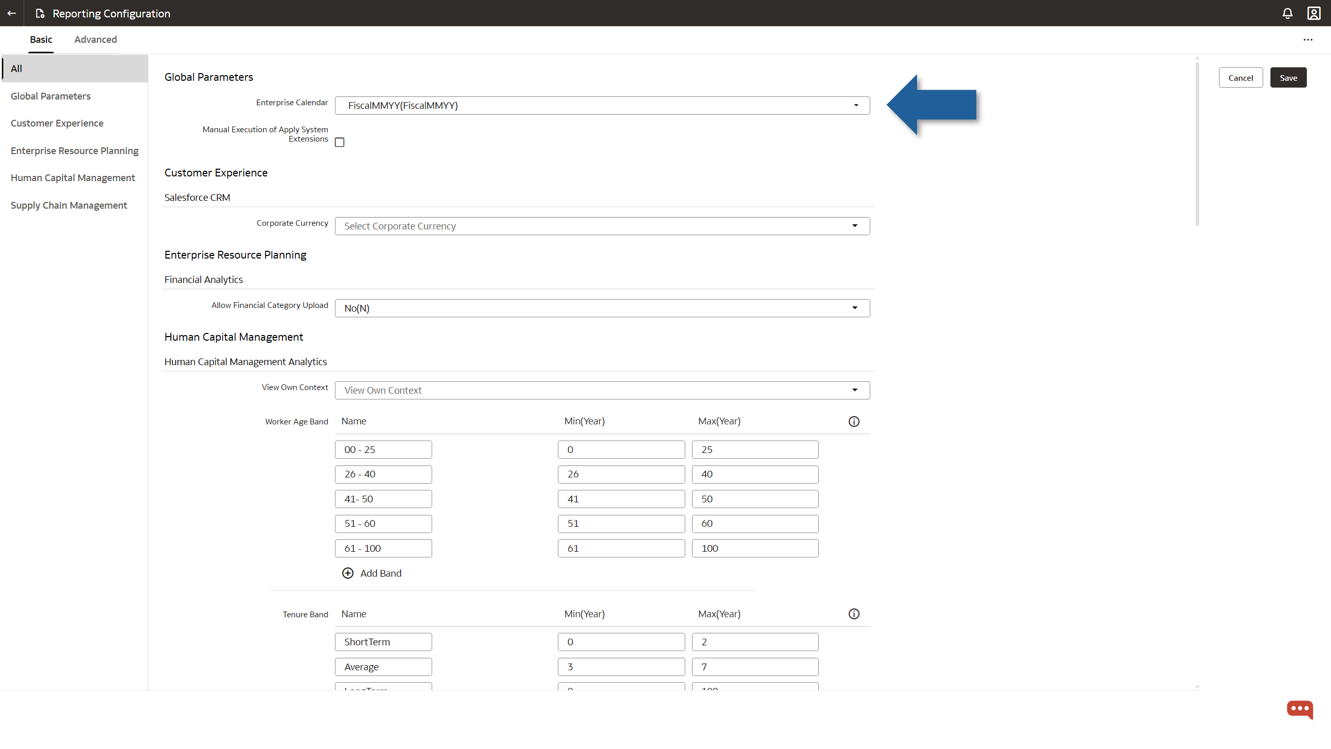
On the Oracle Fusion Data Intelligence Administration console Reporting Configuration page, select a fiscal calendar from the Enterprise Calendar drop-down list on the Reporting Configuration page, Global Parameters section. If no fiscal calendar aligns with the Gregorian calendar, create one fiscal that mirrors the Gregorian calendar, and select it.Follow the steps in the Create the Accounting Calendar documentation to create a fiscal calendar. Although the documentation references the Oracle Fusion SCM pillar, these steps apply to all pillars. For Oracle Fusion Data Intelligence, skip the “Set the Calendar Profile Option” step.
For Oracle Fusion HCM customers
If you built reports using Enterprise Calendar attributes, replace those attributes with Gregorian attributes within the reports themselves. In the current subject area, look in the Time folder for the relevant attributes. Don’t perform this step if you selected a fiscal calendar that doesn’t align with Gregorian as the Enterprise Calendar on the Reporting Configuration page.
What’s the timeline for these changes?
Make this change as soon as possible. We recommend verifying or updating the parameter by mid-April to ensure you don’t run into issues
FAQs
- My Enterprise Calendar is already set to a fiscal year calendar. Do I need to take any action?
No, you don’t need to do anything.
- After I make the recommended change, will my reports function as before? Is there any impact?Yes. After the change, your reports should work as before and show the same data and results, since the reporting configuration is now set to a January–December fiscal calendar aligned to the Gregorian year.
- How do I to prepare for future changes in this area?This is a one-time configuration change. However, after you upgrade to the 26.R2 platform release, if you use the Enterprise Calendar, you must run an incremental data load to ensure existing reports display data.
- What are the risks if I don’t act now?If you don’t make this change and your instance still uses the default Gregorian calendar, any report that depends on the Enterprise Calendar will not display data after your instance is upgraded to the 26.R2 platform. After you set the parameter and run a new incremental load, the reports will display data again. This change requires downtime for running an incremental data load.
Thank you.
The Oracle Analytics team