Netsuite 2019.2 version introduces the Personal Information (PI) Removal feature. Its main purpose is to help customers conform to General Data Protection Regulation (GPDR) Compliance especially the "right to be forgotten" which was recently introduced by the European Union. This feature adds a customer facing tool to allow users to anonymize Field values, System Notes and Workflow History logs. This can also be embedded into partner solutions using SuiteScript API. The target users of the feature are Administrator and Compliance Administrator.
Supported Record Types and Field Types
- Here are the list of supported Record Types where PI removal feature can be applied to.
| Entity | Transaction | Custom |
|---|
| Employee | All Standard Transactions | Custom Records |
| Customer |
| Contact |
| Vendor | Custom Transactions |
| Lead |
| Prospect |
- These are the list of Field Types currently supported.
- Free-Form Text
- Text Area
- Phone Number
- Email Address
- Hyperlink
- Some Standard Address Fields (defaultaddress, billaddress, shipstate etc.)
Enable Features
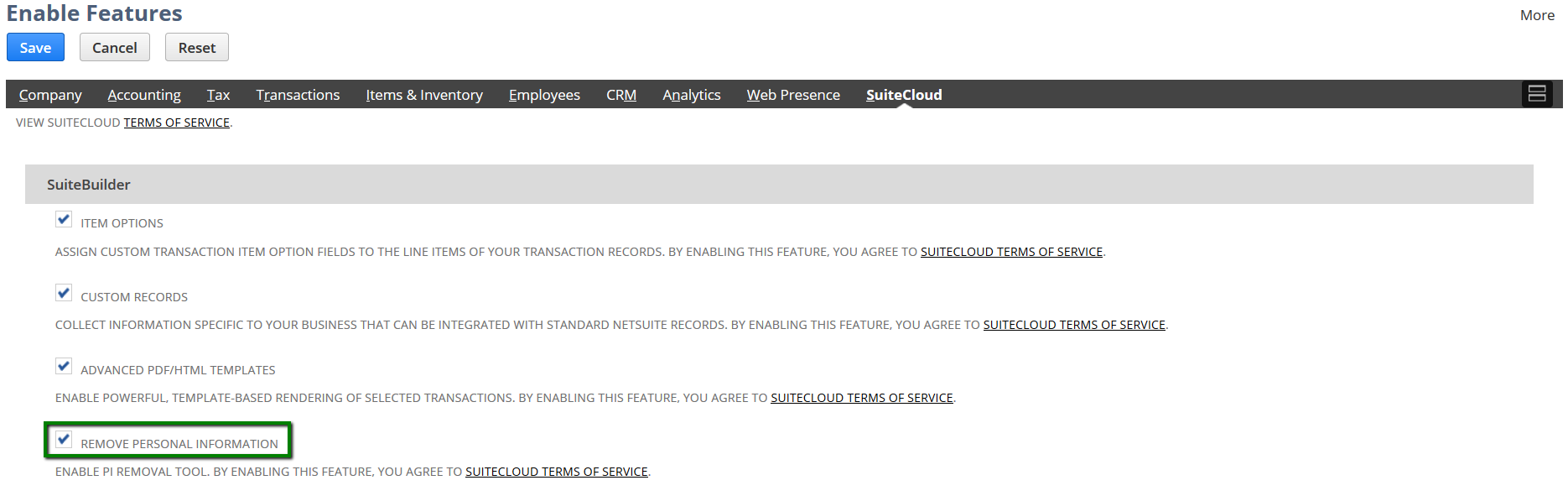
- To enable the feature, navigate to Setup > Company > Enable Features
- On the Enable Features page, navigate to SuiteCloud tab
- Mark Remove Personal Information check box under SuiteBuilder section
- Click Save
Permissions
These permissions are required to create and execute a PI Removal request:
- Removal Personal Information Create
- allows user to create, edit and remove requests
- Remove Personal Information Run
- allows user to approve and execute requests

Note: These permissions are automatically added to Administrator role
Process Workflow
Below is the process workflow of the Personal Information Removal feature.
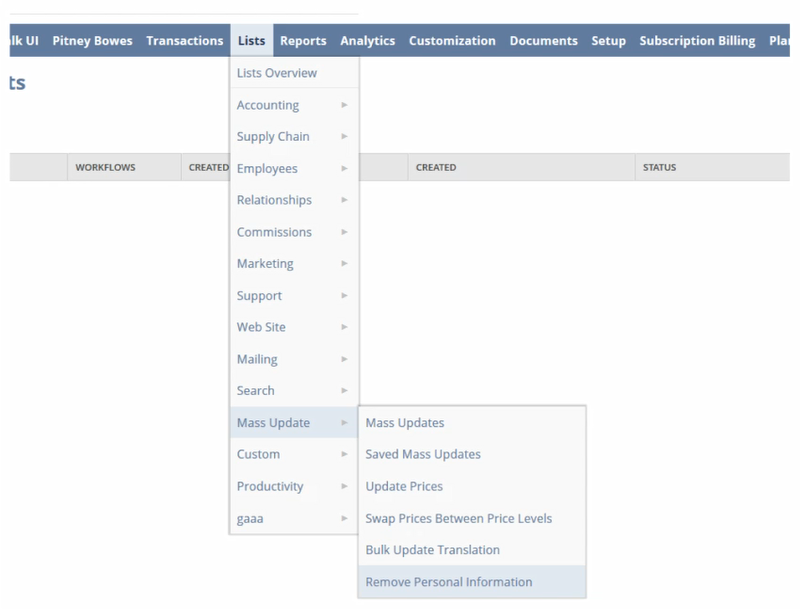
- Access Remove Personal Information page
- Navigate to Lists > Mass Update > Remove Personal Information
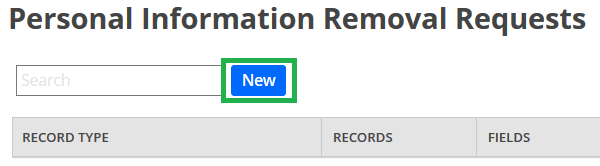
- Create new PIR request
- Once in the page, click New button to create a new PI Removal request
- Configure PIR Request
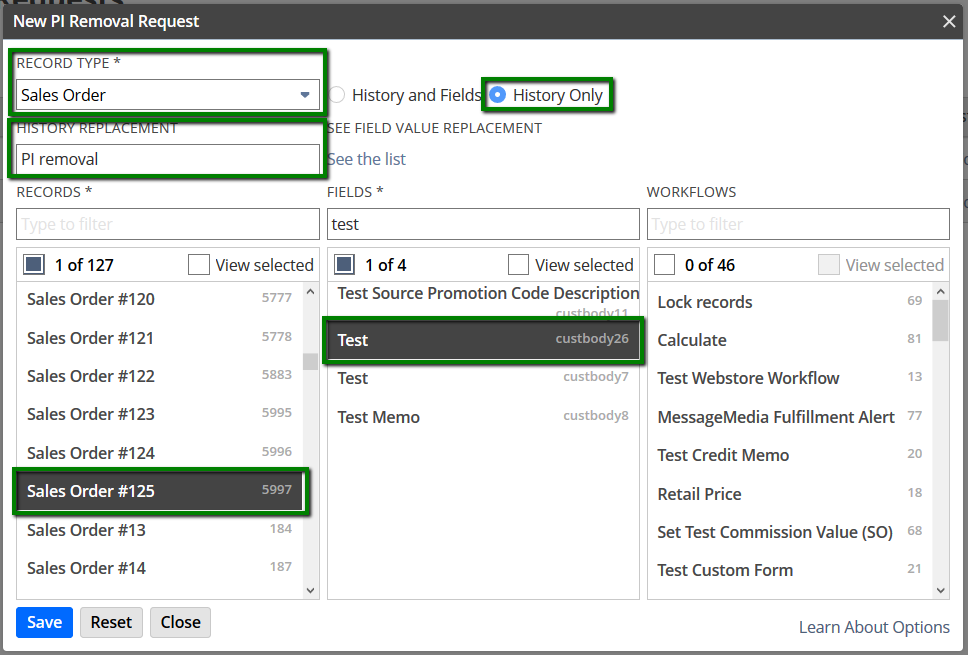
- A pop-out window will appear after clicking the New button and this is where we can configure the PI Removal request.
- Select the Record Type
- Select History and Fields if you would like the static value to replace the value on the field and System Notes and select History Only to set the static value on System Notes only
- Set the text you would like the value to be replaced to on History Replacement
- Select the specific record/s where the the PI removal request must be applied to on Records panel
- Select the specific field on Fields panel where the Personal Information is stored in which we want to replace with a static value
- Process removal request
- Once the request is created click the Approve button

- Verify PI Removal
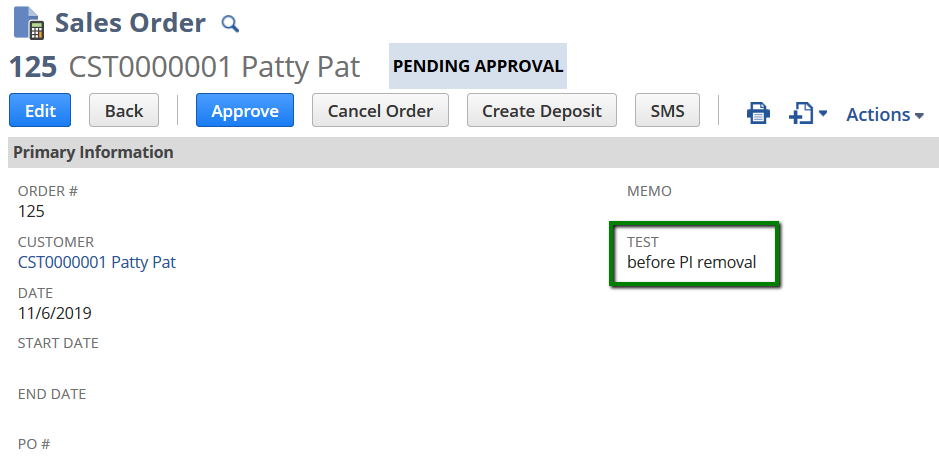
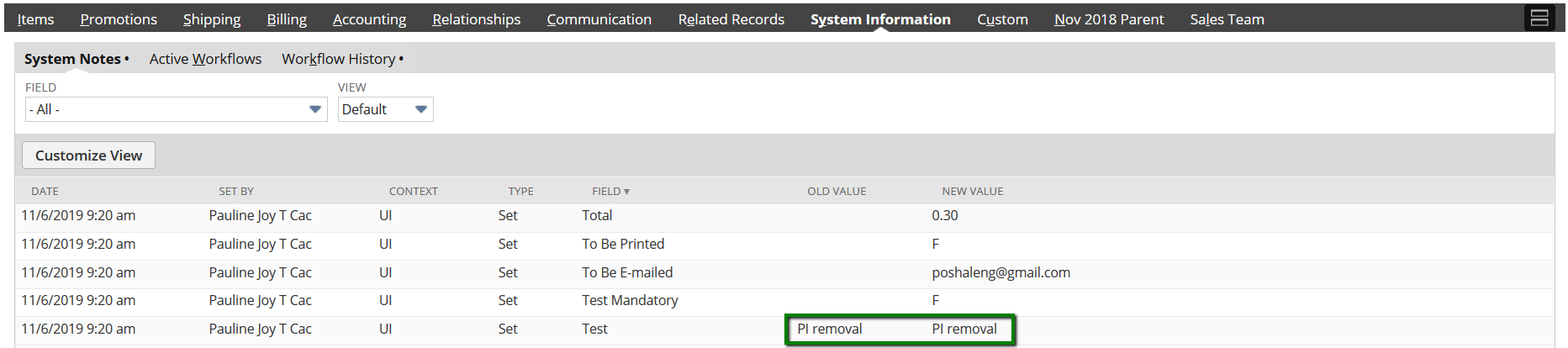
- To verify the PI Removal, open the record where the request is applied to and find the field in the record and in System Notes. Check if the value has been anonymized.
Kindly check SuiteAnswers articles below for more information:
Let us know if you find this feature helpful
