Scenario: A user with an Administrator role noticed that the system-generated Revenue Arrangement did not follow the configuration of the Revenue Recognition Rule and Create Revenue Plans On fields in the Item record > Revenue Recognition/Amortization sub-tab. The source Sales Order has a Posting Discount.
There are no custom scripts or workflows deployed on their Sales Order. They are also using Standard Sales Order Form.
Sales Order:

Item Record (PRRO_Item A):

On the Item Record:
- Revenue Recognition Rule = PRRO_D4 Recognition Period; AND
- Create Revenue Plans On = Revenue Arrangement Creation
Revenue Arrangement:
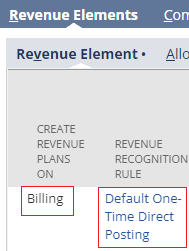
On the Revenue Arrangement:
- Revenue Recognition Rule = Default One-Time Direct Posting; AND
- Create Revenue Plans On = Billing
The ability to use Posting Discounts in Sales transactions and retain the Revenue-related configuration of the item on the Revenue Arrangement is currently a system limitation logged under Enhancement 480902. This behavior is supported by the following SuiteAnswers
article: 49224 || Discount and Markup Items in Advanced Revenue Management (Essentials):
"Revenue arrangements generated from transactions with a posting discount have the Create Revenue Plans On value set to Billing for all elements. You cannot save changes to the Create Revenue Plans On and Revenue Recognition Rule columns for revenue arrangements generated from transactions with a posting discount.
…NetSuite uses the Default One-Time Direct Posting revenue rule for all elements in these revenue arrangements. This revenue rule creates a one-time revenue recognition plan with the same start and end date."
Per checking the enhancement record, there are two workarounds:
Option I: Use a Non-inventory or Service Item to serve as the Posting Discount; OR
Option II: Use a Non-posting Discount.
To set up a non-posting discount, users may follow the below steps:
- Navigate to Lists > Accounting > Items > New
- Select Discount
- Populate the fields as follows:
- Under Primary Information:
- Item Name/Number = Set desired name
- Rate = Set desired rate
- Under Classification:
- Subsidiary = Select desired subsidiary
- Include Children = Mark if necessary
- Under Accounting sub-tab:
- Non-posting = True
- Click Save button

Once used in a Sales transaction, the Revenue Arrangement will follow the configuration from the Item record. This is the same outcome as Option I.
Sales Order:

Revenue Arrangement:

Hope this helps!
