
A tax type is an essential component of the tax system, linking tax jurisdictions to the appropriate general ledger accounts in NetSuite QuickStart Edition. It determines where the tax amounts will be recorded in your financial records.
To access and manage tax types in NetSuite QuickStart Edition, follow these steps:
- Click the Ask Oracle button > Accounting > Settings > Taxes > Tax Types.

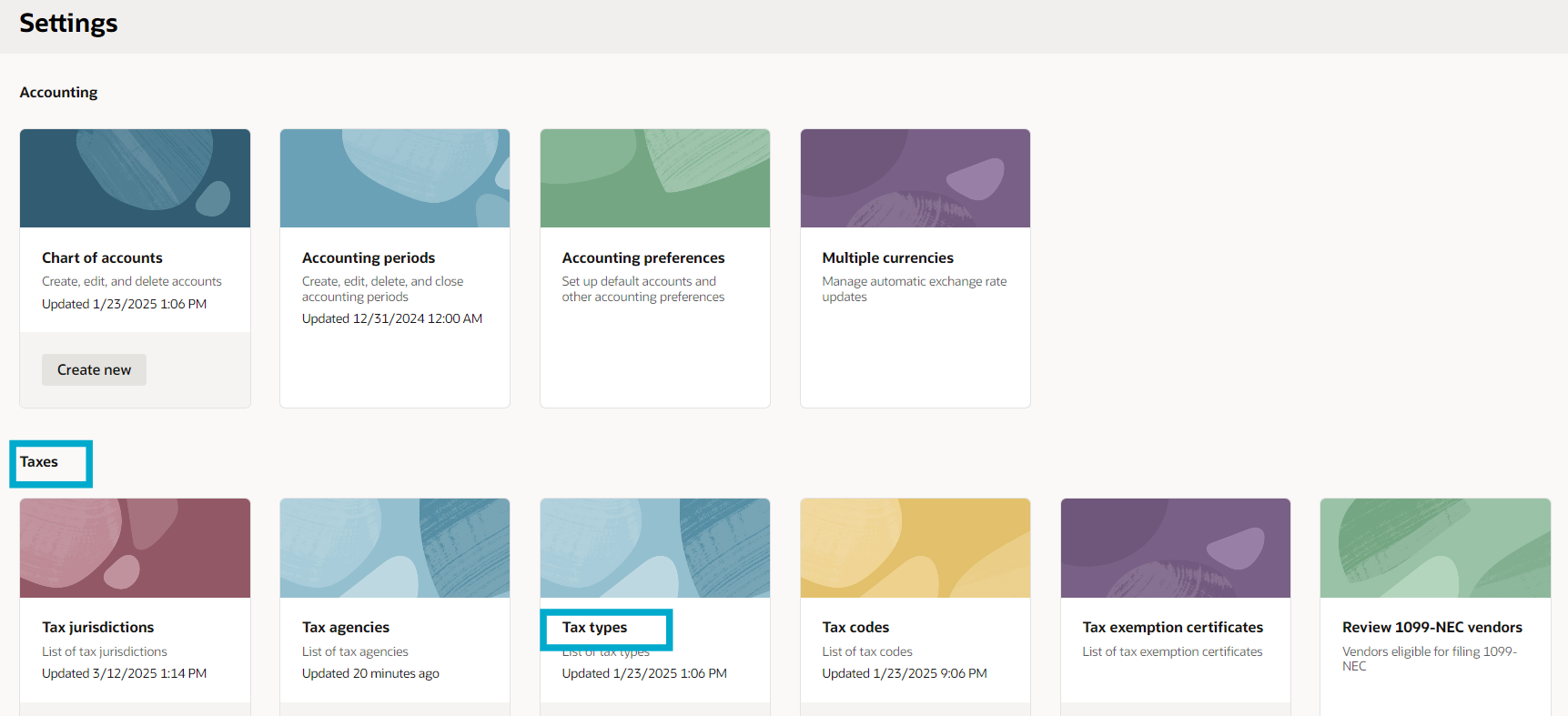
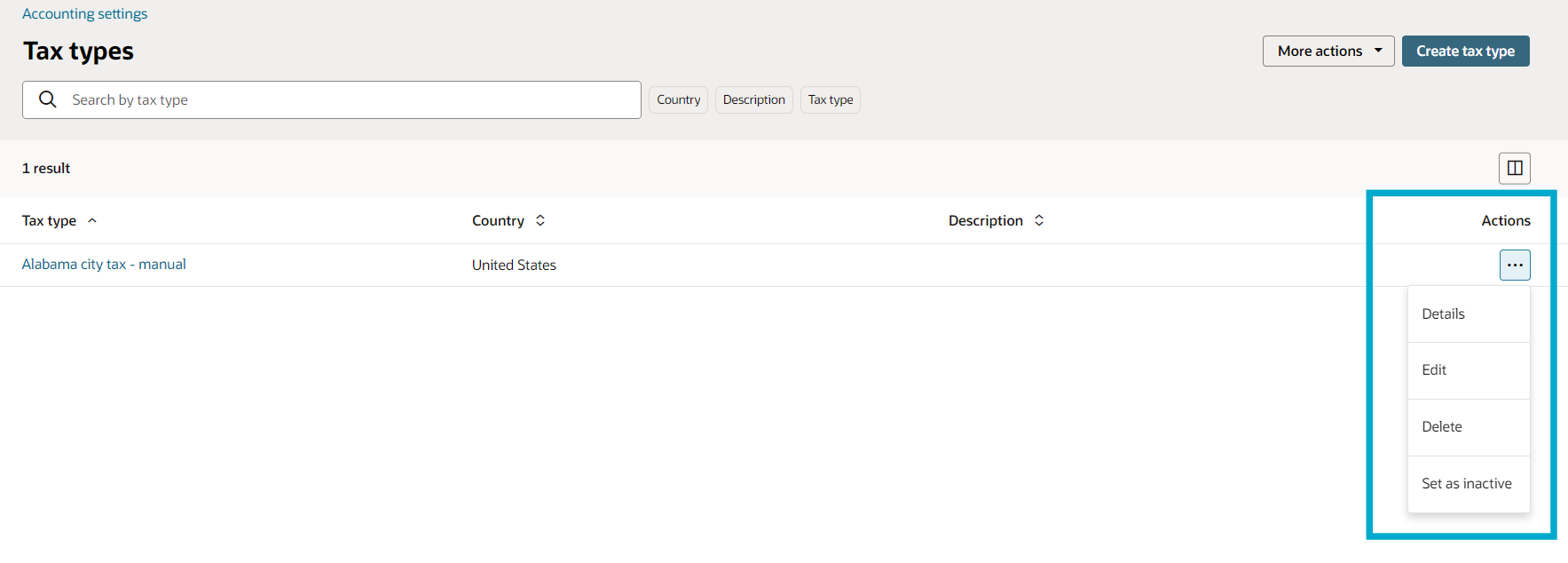
2. You can search for specific tax types using the global search field. From the list, you have the option to view, edit, delete, or set the tax type as inactive.
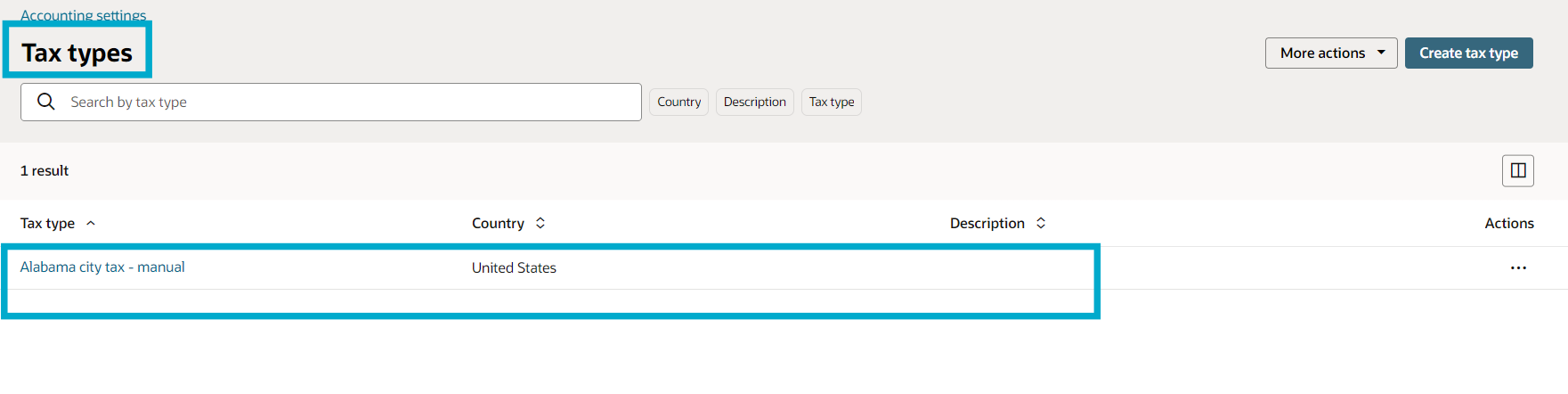
3. To create a new tax type, click the Create tax type button. Then populate the following fields:
- Name - Fill in the Name field with the tax type name.
- Country - Select the relevant Country for this tax type.
- Description - Optionally, provide a Description for reference.


- Under Chart of Accounts, click add item and populate the following:
- Tax Jurisdiction – Select the tax jurisdiction of this tax type from the dropdown list.
- Tax Account for Sales – select the corresponding tax account.
- Once done, click the Check icon.

- Once all fields are populated, click Create to save the new tax type.


4. To edit an existing tax type, click Edit.

- Modify the tax type name and description as needed.
- Add or update tax accounts for sales to ensure accurate financial postings.
- Once edits are done, click Update.


Remember, managing tax types correctly is crucial for maintaining accurate financial records and ensuring compliance with tax regulations. NetSuite's QuickStart Edition provides these tools to streamline the tax management process for your business.
