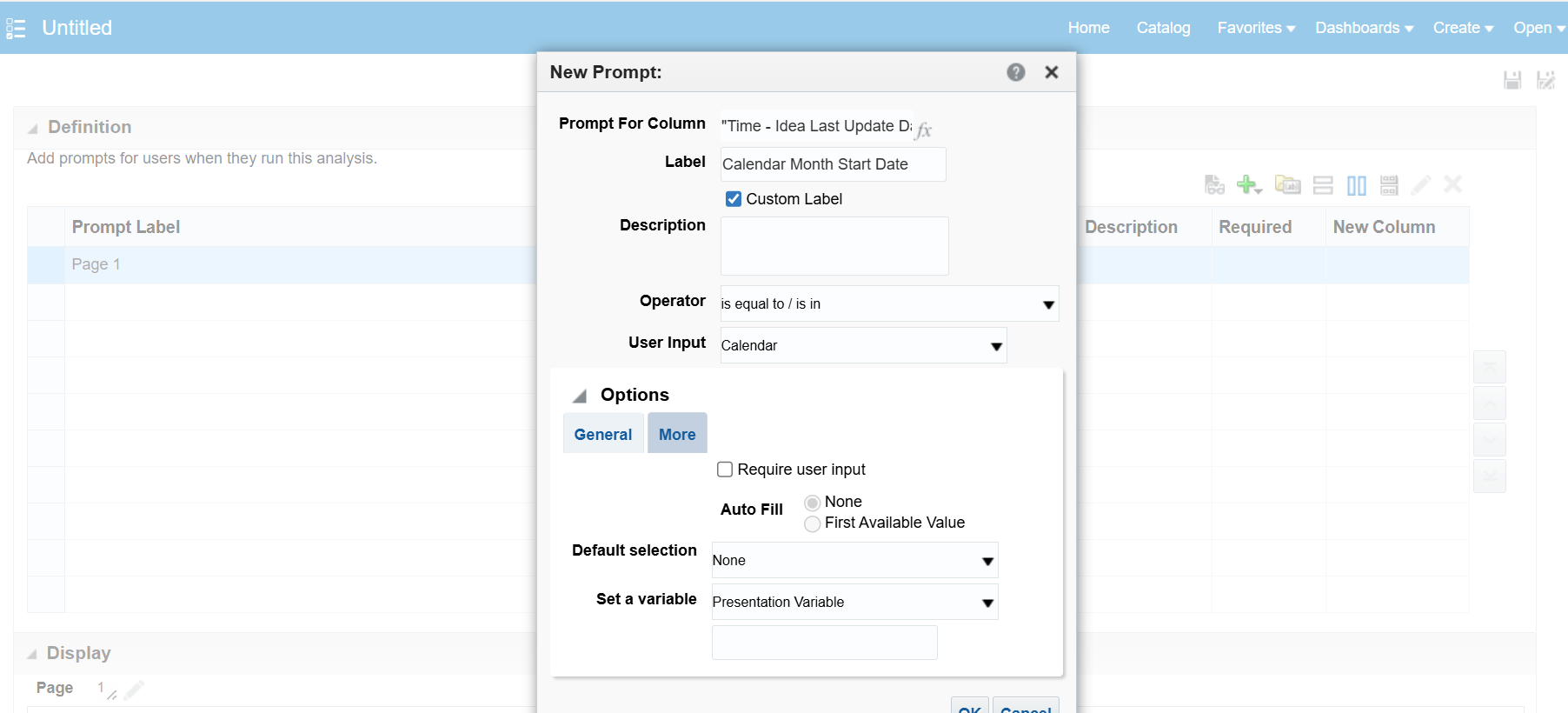
How would a prompted input be used for filtering the analysis (i.e user selects a date in a calendar dating from that date till present for generating the analysis)?
Hi,
Please check below resources to get more understanding on prompts and how to use them:
Filtering OTBI report off of the current system date? — Oracle
OTBI - Need filter on from date to To date as sysdate — Cloud Customer Connect
Fusion Katta: Oracle Fusion HCM OTBI - Chapter 5: Filtering and Prompts in OTBI Reports?
Create Prompts
Thanks.
Hi @User_M2U6X,
Welcome to the Oracle Analytics & AI Community!
You have to define a Presentation Variable while defining the Prompt and then need to use that Presentation Variable in the filter or in case you want to use it in any calculations.
Please take a look into the following docs for more information on Presentation Variable and some examples
Presentation Variable:
https://docs.oracle.com/en/cloud/saas/otbi/otbi-user/advanced-techniques-reference-stored-values-variables.html#GUID-0861B851-8E5D-45C3-9E92-B27821CF6F96
Advanced Techniques - How Dashboard Prompts and Analysis Prompts Interact:
https://docs.oracle.com/en/cloud/saas/otbi/otbi-user/advanced-techniques-how-dashboard-prompts-and-analysis-prompts-interact.html
Display Prompt filter values in a OTBI report:
https://erpwebtutor.com/display-prompt-filter-values-in-a-otbi-report/
Hope this help.
Thank you
@User_M2U6X , Welcome to the Oracle Analytics Community.
Here are the high-level steps with the screenshot …
Configure:
Example: Variable Name: P_FROM_DATE
This gives users a calendar picker.
Save the prompt.
Use the Presentation Variable in the Analysis Filter
Open the OTBI Analysis → Criteria → Filters.
Add filter: Transaction Date >= @{P_FROM_DATE}{01/01/2000}
Hope it helps!
Is there a log that can be checked on our side that might help with the issue. I've submitted an SR, however it is currently being bounced around between different areas. Could not establish connection. oracle.xdo.delivery.ssh2.SSHMessageException: Error in decrypting message Current thought is that this is an issue with…
Hello, I'm trying my hand at creating some KPI's and Dashboard Visualizations for the Recruiting Activity Center (RAC) per the following documentation: Flexible Reporting in Redwood Dashboards Redwood Experience: Recruiting Dashboard When I add a session variable to my OTBI reports, I correctly see a value of 0 in my…
'Facility Name' exists in the Recruiting - Recruiting Real Time multiple times with varying usage. Job Requistion -> Job Requisition - Additional Details -> Facility Name Job Requistion -> Location -> Facility Name Is there any reason why these two Facility Names would not exist in the Recruiting - Real Time Events subject…
We are encountering issues with our OTBI dashboards where there is no option to export to Excel. This seems to be a new issue after the latest update to 26B. I made a change to the report layout (moved one analysis into its own section), and now I cannot export the page. As you can see in my attached photos, the export…
we have a requirement to fetch Worker Historic information like Current Job Title Previous Job Title Previous Department New Department Previous Manager New Manager Previous Location New Location which subject area stores this information in the OTBI?