
Changing passwords regularly puts another layer of security and minimizes the risk of unauthorized access.
This article provides users a quick tip to change password.
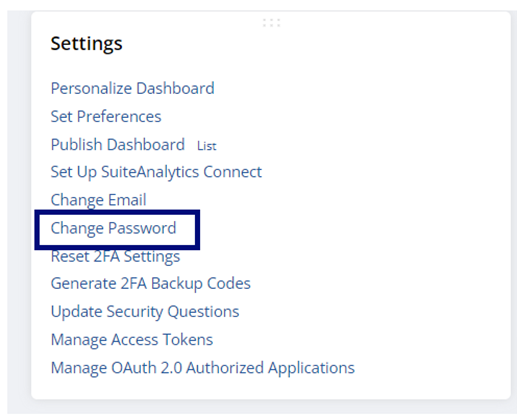
1. Go to Settings Portlet and click Change Password.
Note: Find the Settings portlet on the Home page. If you cannot locate the Settings portlet, see Finding Your Settings Portlet.
2. Enter current NetSuite password and new NetSuite password.
Note: As you type, the Password Criteria fields provide feedback, ensuring that the password you enter meets the criteria shown. For more information, see Creating a Strong Password
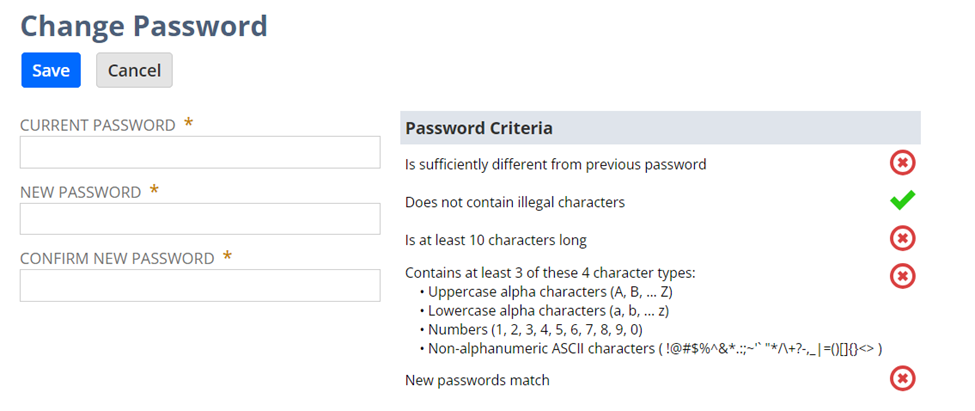
3. Confirm new password then click Save.
In the event that you cannot reset your password due to account locked out or forgotten security questions, you need to contact your Company NetSuite Administrator/s as they have the capability to help you reset your password.
Please note that your account administrators cannot update your security questions. If you forget your password, and cannot answer your security questions, you will need to ask your account administrator to reset your password.
You can check the best practices in these SuiteAnswers articles below:
You can browse, engage, and get some insights in our related NSC Admin Tip below.
Visit and follow the NetSuite Admin Corner category to receive notifications whenever new Admin Tips are posted.
