
Best Of
Re: Sched Server submitting jobs
I would look at having the scheduler not autostart when JDE is brought back up. That will give you the opportunity to go into JSE and manually hold or cancel any scheduled jobs that you don't want to launch before starting the scheduler manually.
At a previous employer using A73 World we used to do this all the time after JDE and server patching.
 MasonJo
What Event is used when Configuring New Email Notifications to Remind Users to Take Action?
PeopleSoft 9.2 Image 47
PeopleTools 8.60.10
We would like to setup new email notifications using the following delivered generic templates. How would this be setup in Travel and what Event is used when it's just for reminding the user to take an action?
Navigation: FSCM > PeopleTools > Workflow > Notifications > Generic Notification Templates
Generic Templates:
EXPendingER - Expense Report in Pending Status Over 10 Days
EXPendingTRN - Unassigned Wallet Entries (sent to employee)
EXPendingTRNMGR - Unassigned Wallet Entries (sent to Manager)
EXApproverNotify - Expense Report in Workflow (sent to employee)
EXApproverNotifyMGR - Expense Report in Workflow (sent to Manager)
EXUnappliedTA - Unapplied Travel Authorization
Cash Advance Outstanding - (sent to employee)
Cash Advance Outstanding Mgr - (sent to manager)
Navigation: Menu > Enterprise Components > Approvals > Approvals > Approval Setup
When adding a new record at this navigation to setup the email notification using the generic template, which Event should be used? These emails are more reminders to take action so the claim is just sitting out there and the action hasn't been taking on it whether that be leaving a claim in pending status, Wallet entry is not assigned, or the TA or CA is not applied, etc. I'm trying to determine what setup is needed to use these templates since they would greatly benefit our customers.
How to Call an Orchestration from an E1Page With CSV and Display it in a Message Box
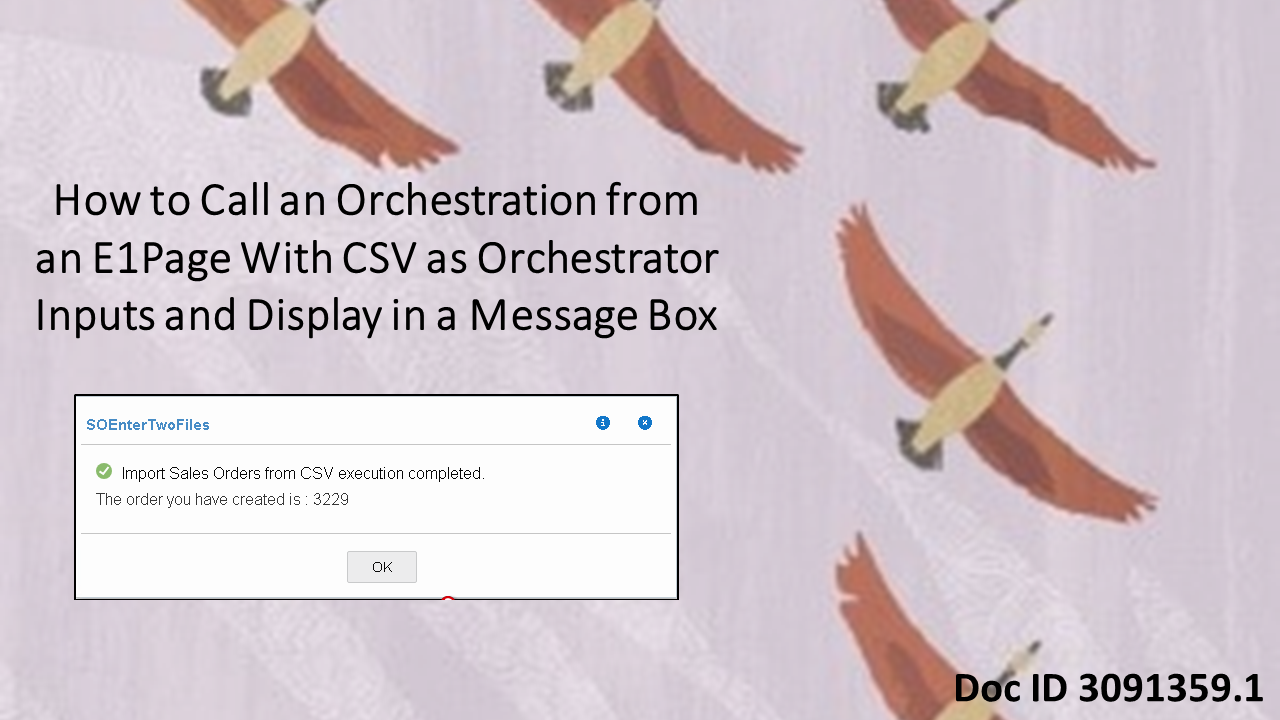
Oracle by Example (OBE) for "Using Files as Orchestration Input from CSV Files" shows you how to create multiple sales orders in E1 using a set of comma-separated values (CSV) files as input. This new KM document takes it a step further to show how you can then display the order that is created in a message box. Doc ID 3091359.1. https://bit.ly/3GVViC3
#E1Tech #Orchestrator

Re: AR Cash Receipt is not getting created for an open AR invoice
Hi David
We are glad to know, please reply as Answered and click on like to the replies that helped.
It will help community and its users.
Thanks
Bharat 😊
Re: R3483 Not Creating Planning Message for Component Items
Hello,
Please note that your posting about R3483 Not Creating Planning Message for Component Items has been moved to Manufacturing - JDE1 (MOSC) to better deal with this topic"
Please refer to the following document Note 641434.1 - E1: 34: R3482/R3483 MRP Not Planning Correctly or S&D P4021 Appears Incorrect FAQ (Doc ID 641434.1)
Question 1. What to check if R3482 or R3483 MRP fails to plan lower level items or dependent demand?
MRP is not planning the correct component demand, or blowing down correct demand. i.e. Demand viewed in the P4021, is larger than the order message, or there is no demand and should be.
Answer 1. If MRP does not appear to create correct component demand, view the P3413 Time Series (G3413/P3413) for more detail, or absence of any detail.
1. Check the low level codes (LLX) for both the component and parent (item Branch F4102, alias LLX). Are they being planned at same level? JDEdwards recommends the Integrity Analysis program (R30601) be run before MRP and Costing Programs, if BOM conversions, or levels of high activity on BOMs have taken place. Users may also use the On-line BOM validation flag within the Manufacturing Constants (G3041/P3009). Standard MRP processes items in the order branch plant, than low level codes beginning with LLX = 0, LLX=1, LLX=2 etc. If the parent and component are the same, the LLX must be corrected. This can be done in 2 ways:
a. Run Integrity Analysis (R03601). Confirm LLX are set correctly, re-run MRP.
b. Activate the BOM Validation in P3009 and re-validate the BOM (open P3002, find the BOM, Select, click OK to save without making changes)
2. To avoid problems insure that BOM entry and maintenance is done in a manner that will allow programs to generate proper values for LLX. This means not entering BOM's, costs etc, when MRP is running. (Copy/pasting from an Excel Spreadsheet, Copy/Paste from Excel is considered 'converted data'.)
3. Verify the planning horizon. MRP can handle 52 periods, including past due, however, the system is restricted to 900 days. This impacts those wishing to schedule only using months. You will need to lower the monthly periods to 36 - 44 dependent upon how you've set up your Shop Floor Calendar. If using a calendar that is strictly work days, 30 a month, it will shorten your monthly periods used for MRP planning.
4. Validate Effectivity Dates on the BOM's containing the missing demand. Are they too close to the start date? Be safe on new BOM's - test with the Effective Start Date back into time.
5. Validate Planned Yield Percentages. If set to zero, MRP will not plan. Reference any PDM Manual - E1: 30: Product Data Mgmt (PDM) Implementation Guides, search on Planned Yield Percentages, an excerpt below: This value represents the planned output yield percent for a step. The system uses this value to adjust the operation scrap percent for the components at that step. Material Requirements Planning (MRP) uses the step scrap percent along with the existing component scrap percent to plan component demand.
6. Check the work files MRP uses (F34UI001 - F34UI006). If any contain data after MRP has quit running, SQL out old records. Reference E1: 34: R3482/R3483 Understanding & Use of MRP (Material Requirements Planning) Document 626116.1.
7. If MRP does not appear to create correct component demand, view the P3413 Time Series (G3413/P3413) for more detail, or absence of any detail.
MRP is smart enough to know if a parent demand has a decrease or cancel message and will not plan for the component quantity no longer required, once the parent message is acted upon. A common mistake is viewing only the S&D inquiry (P4021). This inquiry only displays unadjusted amounts, not reflecting the action messages in queue waiting to be acted upon. By using the Time Series (P3413), you can view both adjusted and unadjusted values, and back into why the system is not creating an order for the amount to cover the S&D inquiry amount. This is done by viewing pegging records, "W" line type sales orders that perhaps were canceled, and the corresponding WO not yet canceled.
8. Understand where and what type of demand is created. Validate the Planning Fence Rule and Planning Fence Day (Item Branch/Additional System Information).
With the Planning Fence Rule being any of the below and Planning Fence set to desired number of Days:
C - Customer Demand before; Greater of Forecast or Customer Demand after
F - Forecast before; Forecast plus Customer Demand after
G - Greater of Forecast or Customer Demand before, Forecast after
S - Customer Demand before; Forecast after
1 - Zero before, Forecast after
3 - Zero Before, Forecast plus Customer Demand after
R3482/R3483 plans for the Quantity associated with -FWO: Firm Work Order either before the Planning Fence or after the Planning Fence.
Firm Work Order demand (-FWO) is an adjusted demand, not direct from the work order quantity, that is created by a change to the Parent Work Order. It reflects the date and quantity of the demand based on acting upon the Parent's MRP message like Expedite, Defer, Increase or Decrease.
This demand, displayed on the P3413 Time Series -FWO line, is considered "dependent" demand. All firmed dependent demand is always considered in MRP planning. It is not possible to "suppress" the demand associated with -FWO, by manipulating any of the Planning Fence Rules, as the demand associated is due to the Parent WO.
If the demand is not correct, research the component demand using the P3412, Pegging Inquiry. Look into the parent demand and validate at that level first.
9. Check whether data selection is changed, items are made obsolete, or MRP stopped unexpectedly.
If yes, then this may cause corruption in the MRP tables. We recommend clearing the F3411/F3412/F3413 files via the MRP Performance Tab, Processing Option 1. Clear F3411/3412/3413 Tables).
Re: BI_PRNXPN01 - add email to template
You need to make sure the field exists in the Extract tables used by the process. Email is not part of that as far as I am aware (at least not in our 9.2 version). So we created a Bill Inquiry phone ID named EMAIL and have a rule in the template to print the proper Email ID based on the BU in case this Bill Inquiry phone ID is in the extract. We didn't want to customize the entire program to get this included, so this was a simple solution…
Re: Can we define auto accounting rules in AR to be prorated based on days instead of number of months
Hi
"Daily Revenue Rate, All Periods" and "Daily Revenue Rate, Partial Periods" Type is available, you can use the same.
The Daily Revenue enables accurate revenue distribution over all accounting periods, including full and partial periods. A partial period is an accounting period where the start date is not the first day of the period and/or the end date is not the last day of the period.
For example, you have a contract that is valid from January 14 to April 13. The total revenue is $900.
Using the new Daily Revenue enhancement, Receivables calculates the daily revenue rate as follows:
Service duration = 90 days
(18 days in January + 28 days in February + 31 days in March + 13 days in April = 90 days)
Receivables calculates the daily revenue rate by dividing the total revenue by the number of days for the contract duration.
(Daily revenue rate = $900/90days = $10/day)
Receivables bases the revenue amount per accounting period using the daily revenue rate, and the selected accounting rule.
This table illustrates the difference between selecting an accounting rule with a type of either Daily Revenue Rate, All Periods or Daily Revenue Rate, Partial Periods.
GL Date Period Days in Period Daily Revenue Rate, All Periods Daily Revenue Rate, Partial Periods
January 14 January 18 180 180
February 14 February 28 280 295
March 14 March 31 310 295
April 13 April 13 130 130
Read Note 1116934.1, How To Setup And Troubleshoot Invoicing Rules and Accounting Rules
Best Regards,
Bharat