Best Of
Re: TOP CONTRIBUTOR FOR MAY 2024!
Congratulations, @Tigran Shahnazaryan! 🏅

Re: TOP CONTRIBUTOR FOR MAY 2024!
Hats off to you @Tigran Shahnazaryan! 🏆️

NSC Admin Tips | How to Reset Password in NetSuite?

Changing passwords regularly puts another layer of security and minimizes the risk of unauthorized access.
This article provides users a quick tip to change password.
1. Go to Settings Portlet and click Change Password.
Note: Find the Settings portlet on the Home page. If you cannot locate the Settings portlet, see Finding Your Settings Portlet.
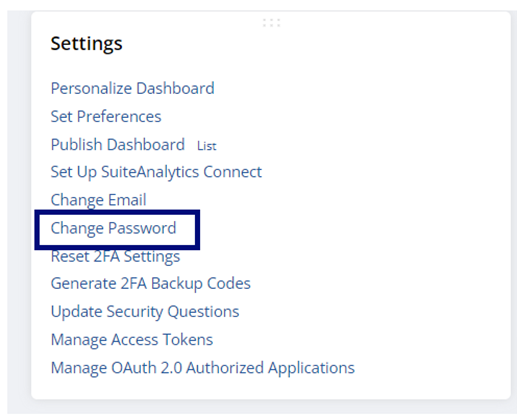
2. Enter current NetSuite password and new NetSuite password.
Note: As you type, the Password Criteria fields provide feedback, ensuring that the password you enter meets the criteria shown. For more information, see Creating a Strong Password
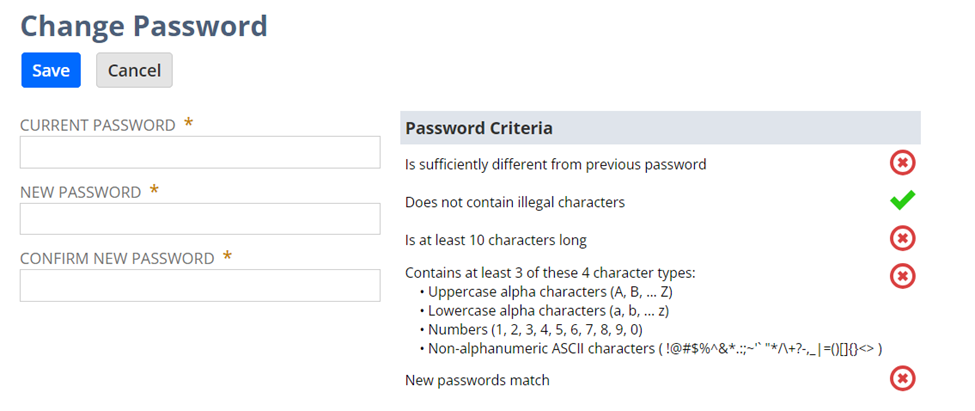
3. Confirm new password then click Save.
In the event that you cannot reset your password due to account locked out or forgotten security questions, you need to contact your Company NetSuite Administrator/s as they have the capability to help you reset your password.
Please note that your account administrators cannot update your security questions. If you forget your password, and cannot answer your security questions, you will need to ask your account administrator to reset your password.
You can check the best practices in these SuiteAnswers articles below:
- Answer ID: 82659 If You Forget the Answers to Your Security Questions
- Answer ID: 28848 Getting Access When You Forget Your Password
You can browse, engage, and get some insights in our related NSC Admin Tip below.
Visit and follow the NetSuite Admin Corner category to receive notifications whenever new Admin Tips are posted.

Re: Inventory Costing Process status
Hi CRATIV_Jason,
In addition to what Niks mentioned, you may also try to check the Inventory Costing Preference under Setup -> Accounting -> Inventory Costing Preference -> Schedule Inventory Costing since costing is running based on what was set under this preference.


Re: "User Notes" saved search
Most probably, this is a permission issue. If the search is built by someone with an Admin role, all users will be included.

Re: NS Reports block email
Hi @tech work,
I hope you are doing well. May I know what type of report are you trying to send?
Is this something similar to a Saved Search: Send Email Alerts When Records are Created/Updated - when new records are created for the search?
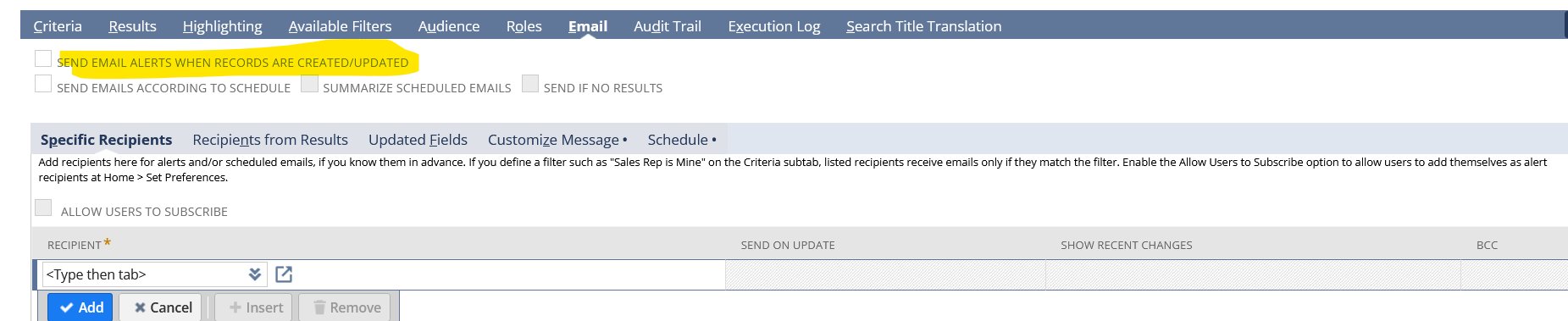
Unfortunately, the option may not be available on reports such as financial reports.

Re: How to add invoice fields to the project saved search?
Hi @User_HIG7E,
I hope you are doing well.
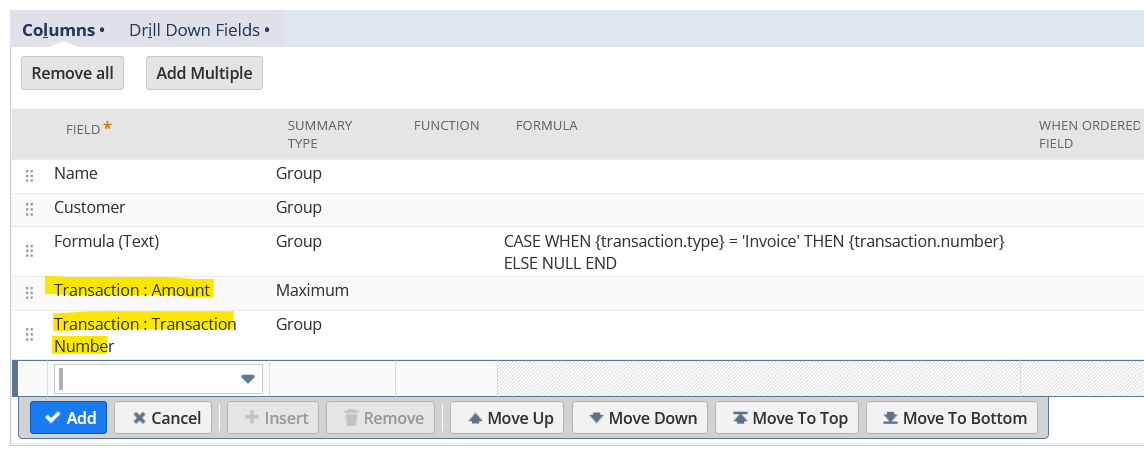
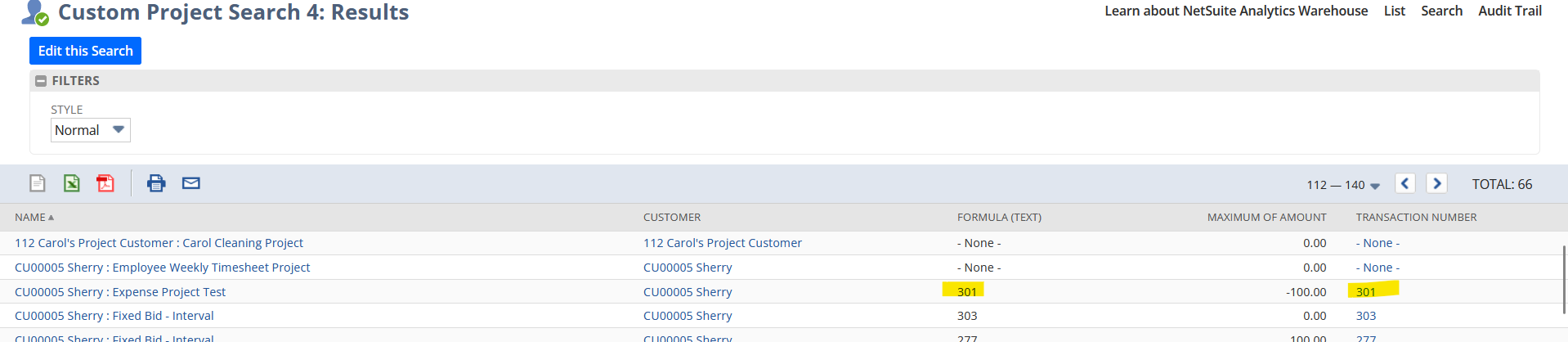
Since in your CASE WHEN formula, you have set the condition of CASE WHEN {transaction.type} = 'Invoice' - which means that this already looks for the transaction type of Invoice, you should select Transaction Number or Document Number such as for example: CASE WHEN {transaction.type} = 'Invoice' THEN {transaction.number} ELSE NULL END
or you can set a Criteria in your Project Saved Search to filter the Invoice transactions:
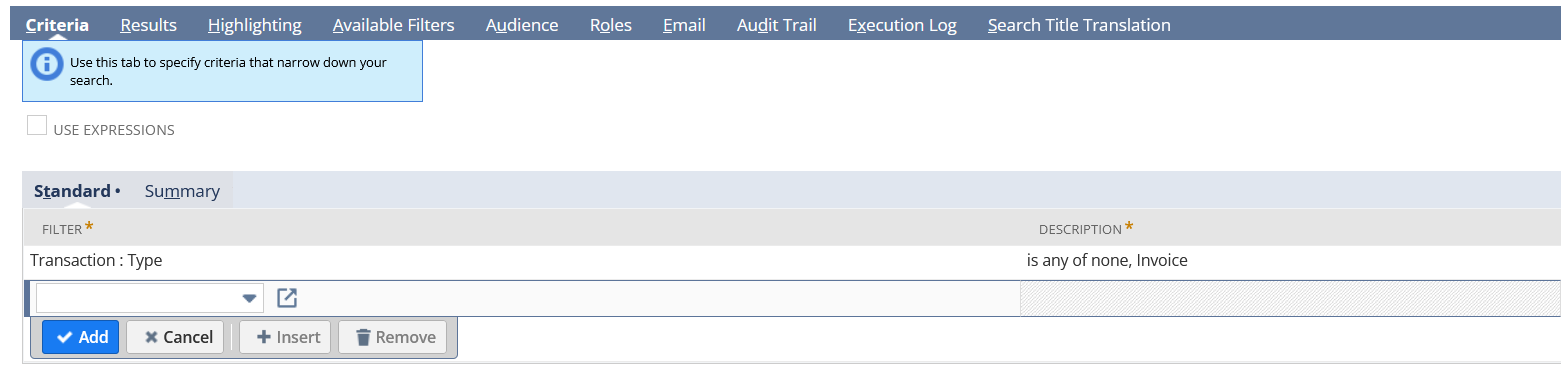
Then in the results, you can add the fields from Transaction fields…
Result:
I hope this helps! 🙂
==========
If you find this reply to your question as helpful, others with the same question might find it helpful as well. By marking “Yes” on the “Did this answer your question?”, you’ll be able to aid the community to find the solution much easier and faster without the need to read through all the replies
Re: Billable checkbox is disabled on Time Entry
You can update the time entries to always be billable - using SuiteAnswer 102926.
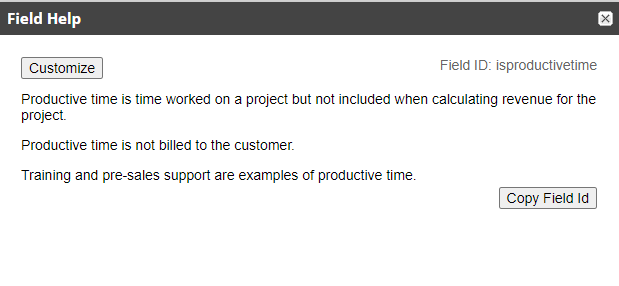
Note that the project preferences themselves can impact the time entries. If the project preferences have 'productive' = true, the time won't be marked as billable on the time entries.

~angela

Re: How do we bulk "Configure" for these locations instead of manually click on the configure for indivi
Hi @Bee Yook
You can use csv import. As explained in this thread.
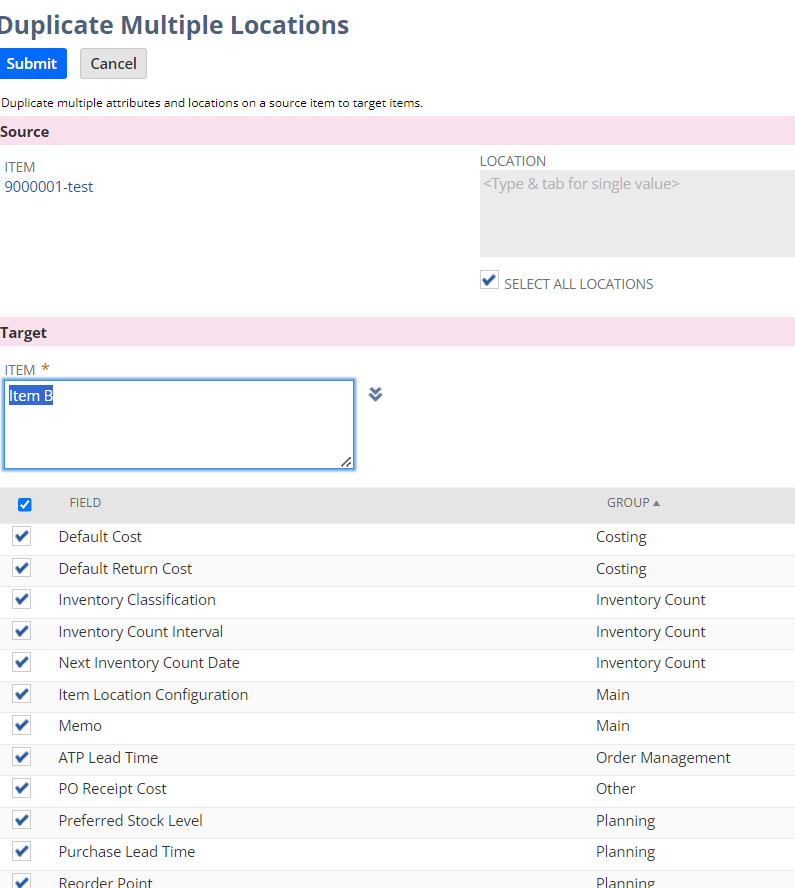
There is another way is to use the [Duplicate Multiple Locations] button under the Item > location Inventory tab.
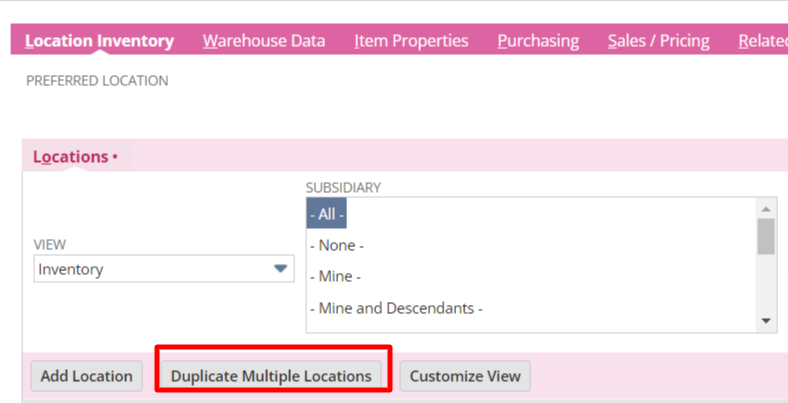
E.g. you can configure all the locations that you want under one item first. After that click this button to copy all the location settings for this item to other items. (Assuming all the settings are the same). You may want to test this out in sandbox first.
Regards,
Wee Ming
 Wee Ming