Best Of
Re: Non-inventory Item for Resale doesn't appear on the Packing slip.
Hi @Roman S,
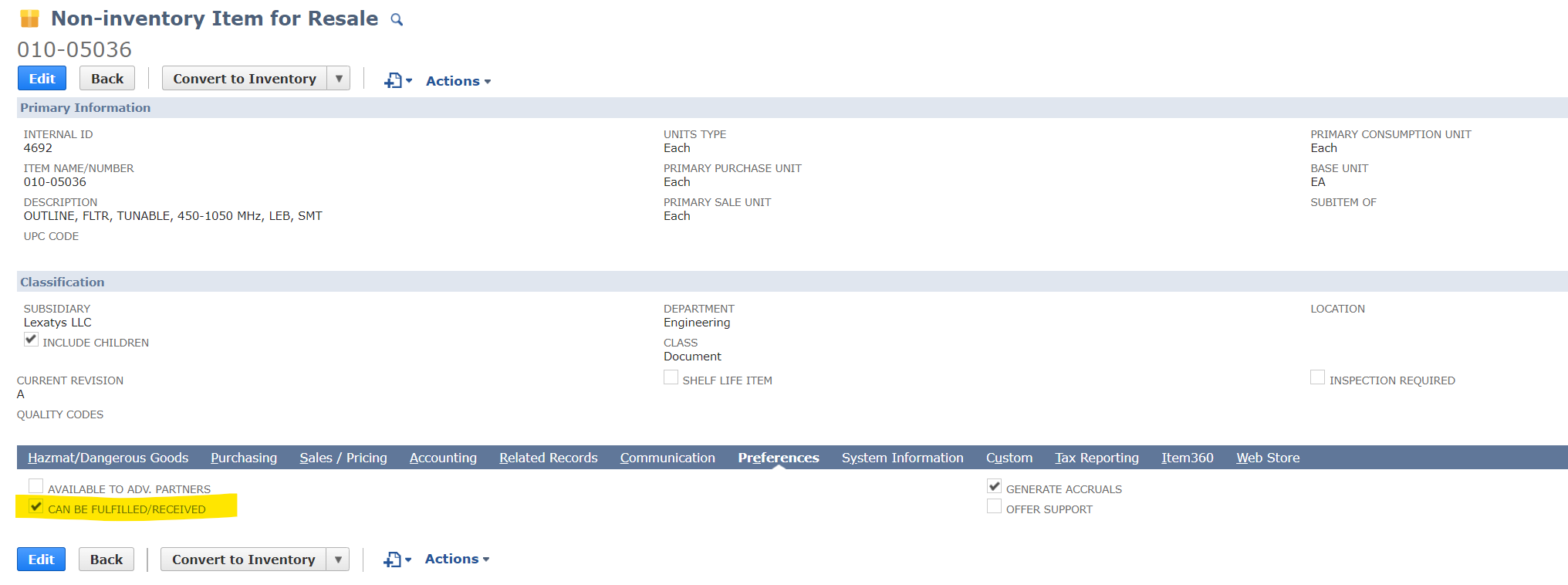
I am not sure if you are not able to see the item on the item fulfillment or if it is just not showing up on the packing slip, but is Can Be Fulfilled/Received enabled for the item?
John

Re: Non-inventory Item for Resale doesn't appear on the Packing slip.
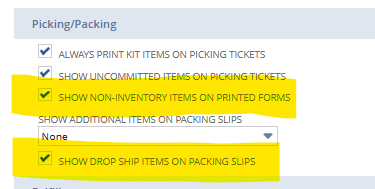
Under the Accounting Preferences, Order Management
Under the Picking/Packing subheading there are 2 options that might be affecting this.

Re: Same AP Aging Report - Different Employees Get Different Results
You're welcome, @User_XQ321! ?
Please be advised that there could be transactions that are included at the end of the month's transaction date but actually have a different posting period.
For example, a payment is dated 06/17/2022, however, it is posted in May 2022 posting period. The transaction will reflect on your Aging Report based on your Reporting preference.
Edit: You may have to make sure that there are no transactions that are posted to different periods against their transaction dates to be able to conclude that at the end of the month, the filter should not matter to the A/P Aging results.

NSC | Show Entity (Customers/Vendors) from a Journal Entry in an Income Statement Detail
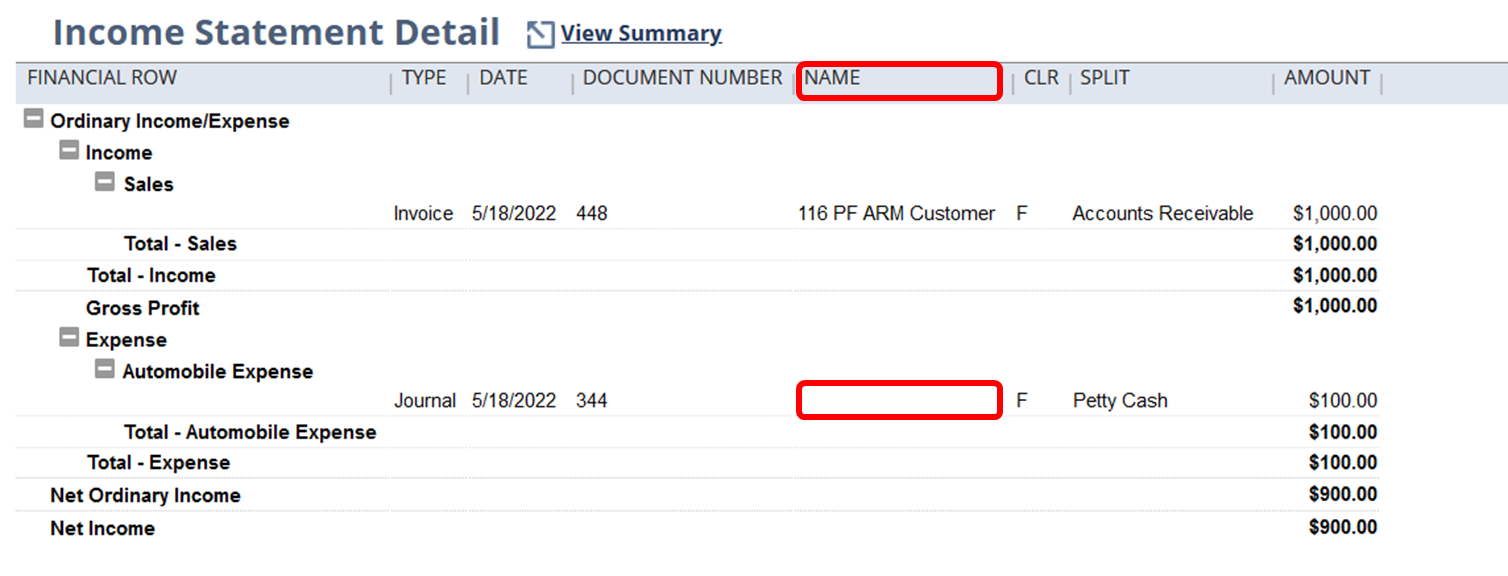
Scenario:
By default, the Name column found in the Income Statement detail refers to the Entity (Vendor/Customer) found in the header of the document itself such as Invoices, Vendor bills etc., not the actual G/L line so that is why, the name column is empty for journal entries with a customer or vendor:
Solution:
To be able to show the Vendor lines of a Journal Entry in an Income Statement details, users needs to follow the steps below:
1.) Navigate to Reports > Financial > Income Statement > Detail
2.) Click Customize
3.) Go to Edit Columns
4.) Open Financial folder > Entity (line) subfolder > select Name
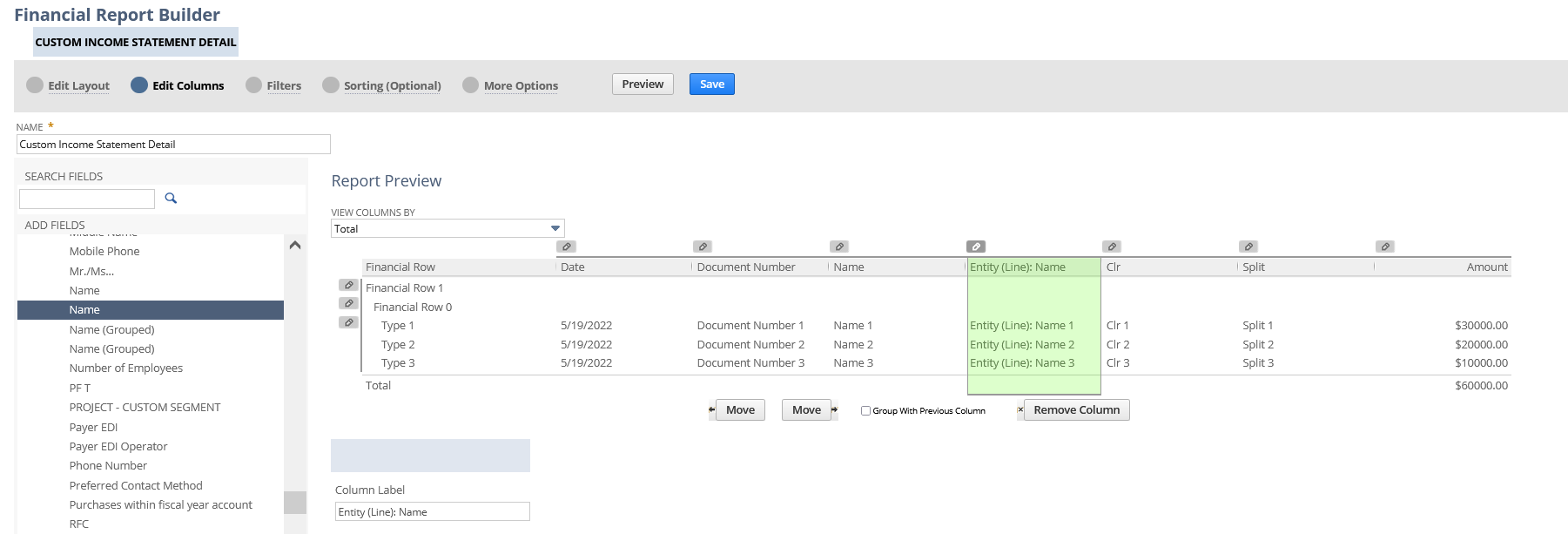
5.) Save and run the report
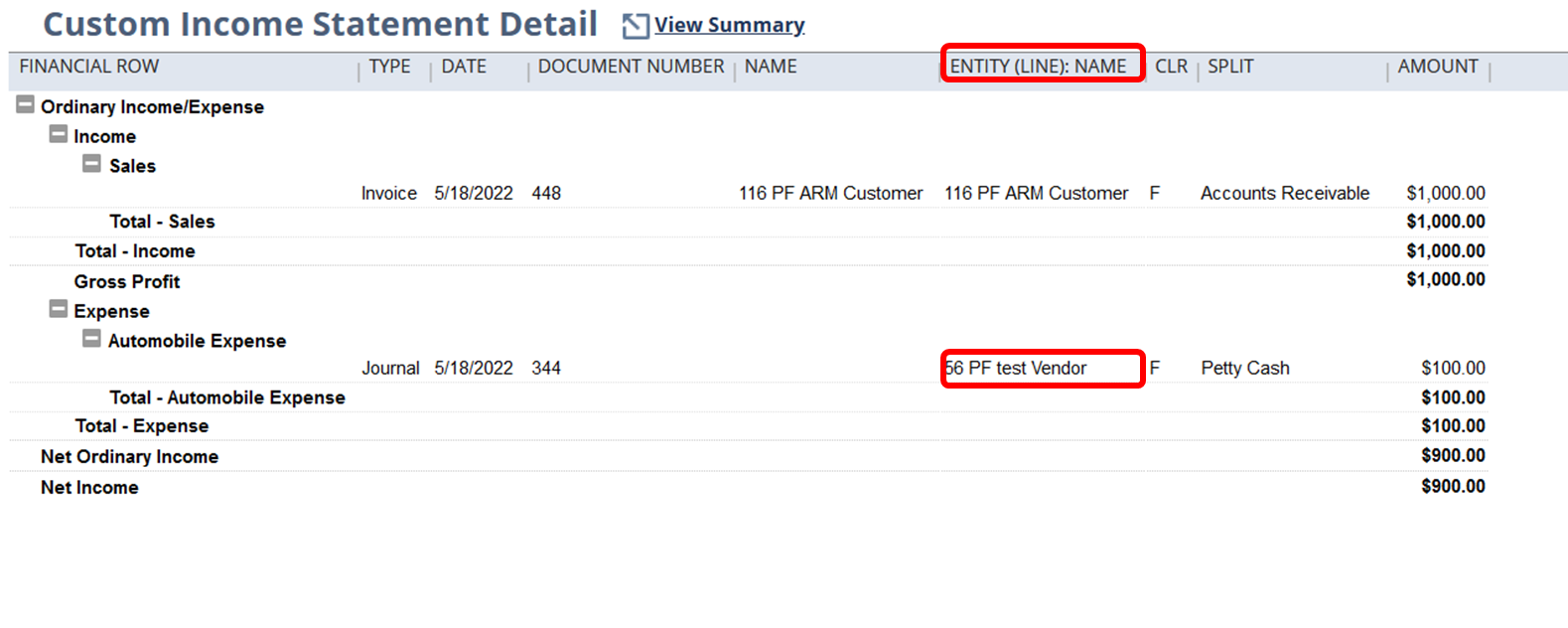
Have you tried this one?
Hope this helps

Re: Same AP Aging Report - Different Employees Get Different Results
Hi @User_XQ321,
Good day! Hope you are doing well. ?
Kindly check if the two employees are using the same A/P Aging Report Filter Date. They may have different Reporting Preferences, one's set to Report by Transaction Date and the other one is by Period.
To resolve this, here are the steps the Employees may take:
1. Navigate to Home Icon > Set Preferences.
2. On the Set Preferences page, under Analytics tab, we may set the Report by Period dropdown to All Reports, if you would like to use by Period to all Reports. If you select Financials Only, only the following financial reports are reported by period— Income Statements, Balance Sheets, Cash Flow Statement, Trial Balance Report, Income Graph, Expense Graph, and Net Worth Graph.
Please note that this is a User Preference and each of the Team should set their Preference to this so that they will be able to run and generate the Report by Period and not by Transaction Date. Hence, have the same results when generating similar Reports.
You may refer to this SuiteAnswers Article ID: 8374 | Reporting Preferences on the Set Preferences Page for more information.
I hope this helps your concern. ?
================
If you find this reply to your question as helpful, others with the same question might find it helpful as well. By marking “Yes” on the “Did this answer your question?”, you’ll be able to aid the community to find the solution much easier and faster without the need to read through all the replies, and you will also get closer to earning your next Answer Accepter badge.
Re: Gross profit per class
Hello @User_6AYBM
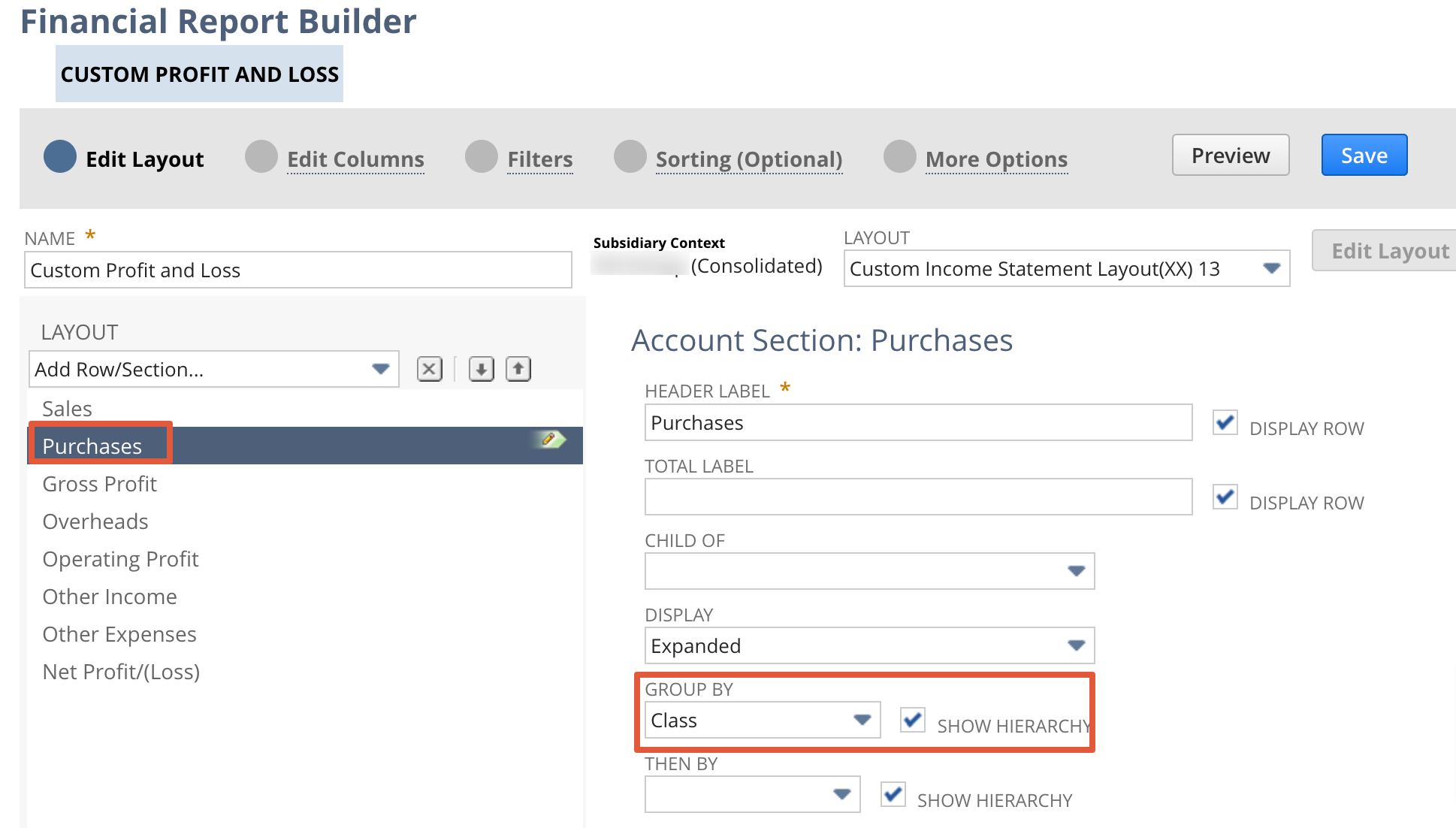
Yes it's possible to see the class-wise Gross profit details . Pls see the below custom income statement
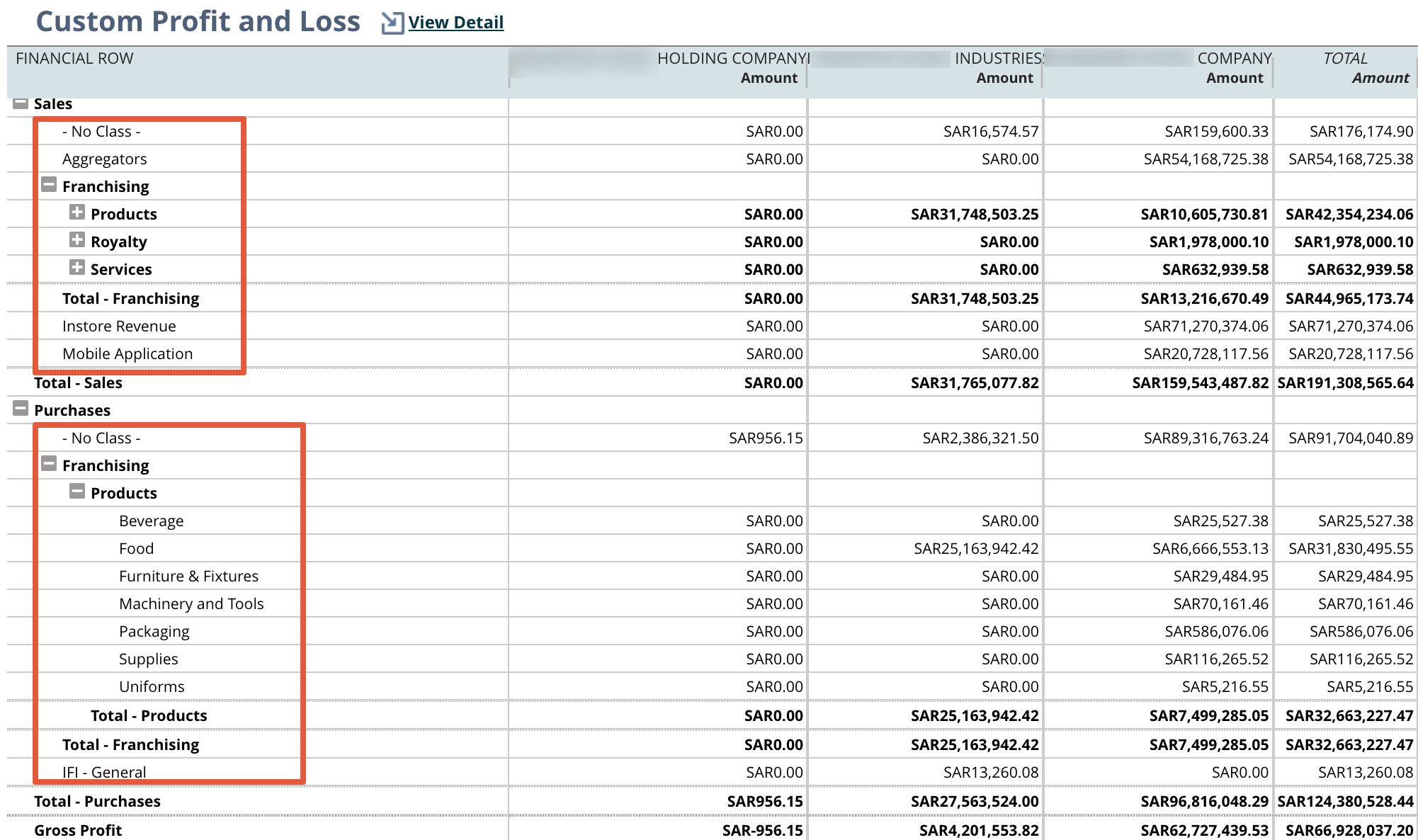
Reports - Financials - Income Statement - Click customization
Click on Sales/Income Financial section - Select Group by Class
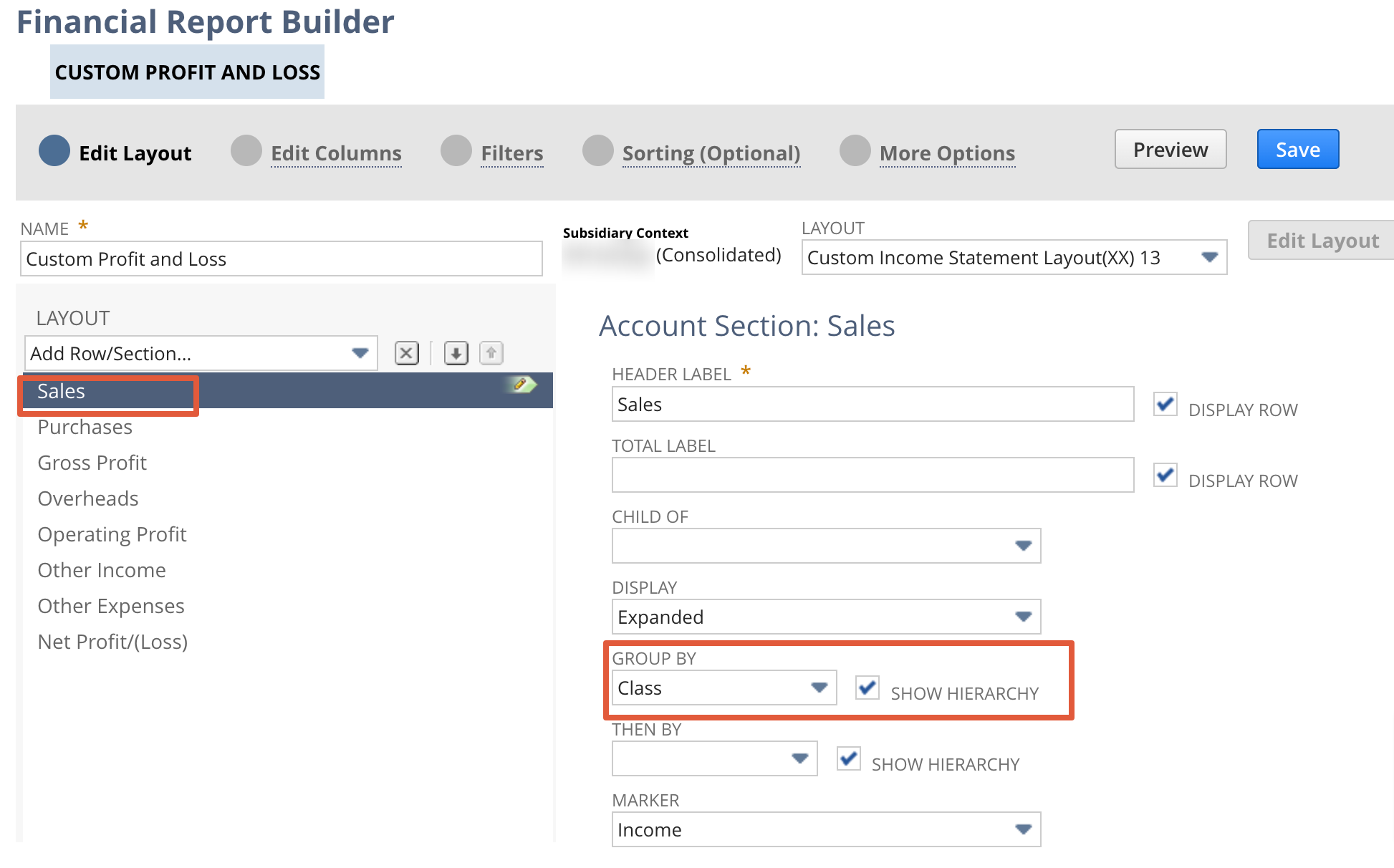
Click on Purchase Financial section - Select Group by Class

Re: Re Run amortization for Vendor bill
Hello @Sivasubramaniam
You will not be able to modify any lines UNLESS the following are enabled:
1. The accounting preference Allow Users to Modify Amortization Schedule = True
2. The role has been granted with at least Edit permission for Amortization Schedules
3. The amortization line is not yet recognized/amortized
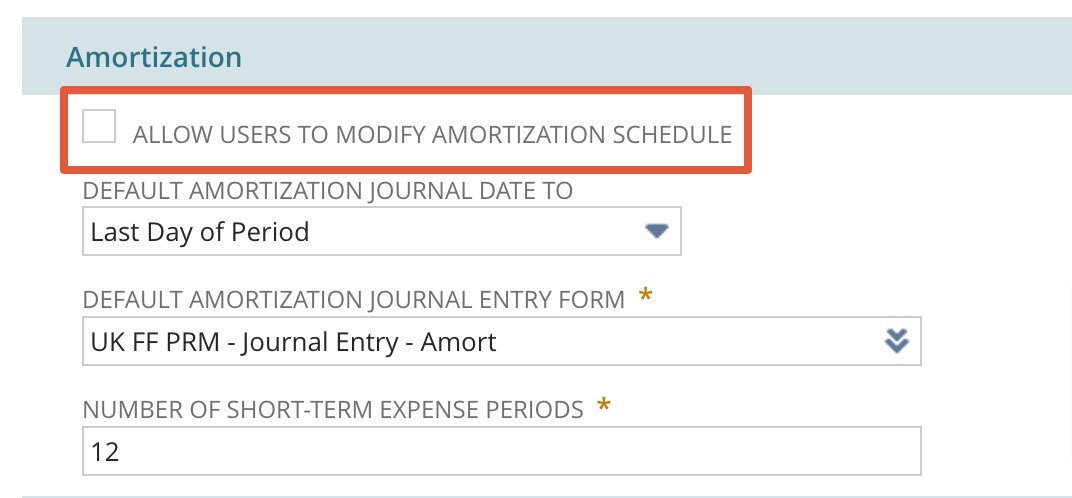
Note: Amort. Schedule/Template, Start Date, End Date on the source transaction may only be changed or removed if there is no amortization made yet.
Re: Item Source WO changes after releasing work order
Hello @Joy Noreen Magoling-Oracle!
We've resolved this Issue with our own created SuiteScript that displays a 'Release' button. When clicking on the 'Release' button the status of the WO goes straight to 'Released'. The problem with the used WorkFlow was that the status was changed from 'Planned' to 'Closed' and from 'Closed' to 'Released' which resulted in the error we experienced.

Re: Need help with workflow
Hi @Dirk Nieuwkamp,
To reiterate, the cause of the credit limit pop-up warning is the Hold preference in your customer record. It is currently set to On as shown in your screenshot below:
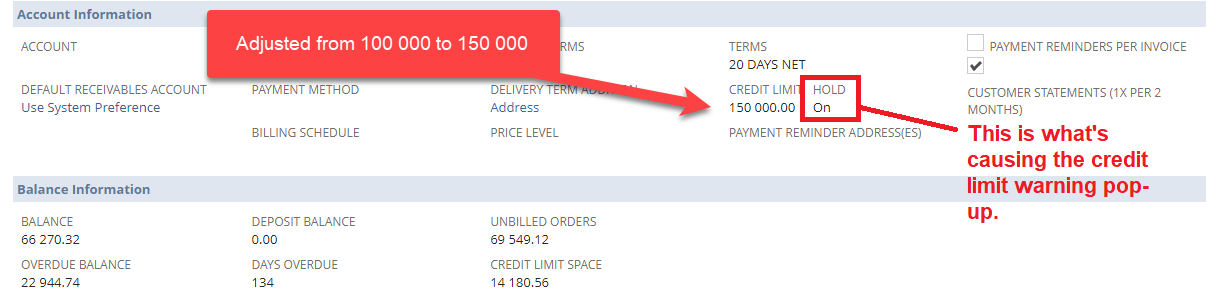
This is what SuiteAnswers Article 9627 states about the preference being set to On:

With the above said, you must set the preference to either Auto or Off to suppress the warning and be able to create orders for the customer.
Hopefully this clarifies things.
If you find this reply to your question useful, others might be as well. By clicking “Yes” on “Did this answer the question?”, you’ll be able to help the community members who might have a similar concern find the answer easier and you will also get closer to earning your next Answer Accepter badge.
-Jack

Re: Advanced Bin managment to use it for Bin managment by location
Hello @Amjad Kasem
You have to do two more steps to manage the bins on transaction levels.
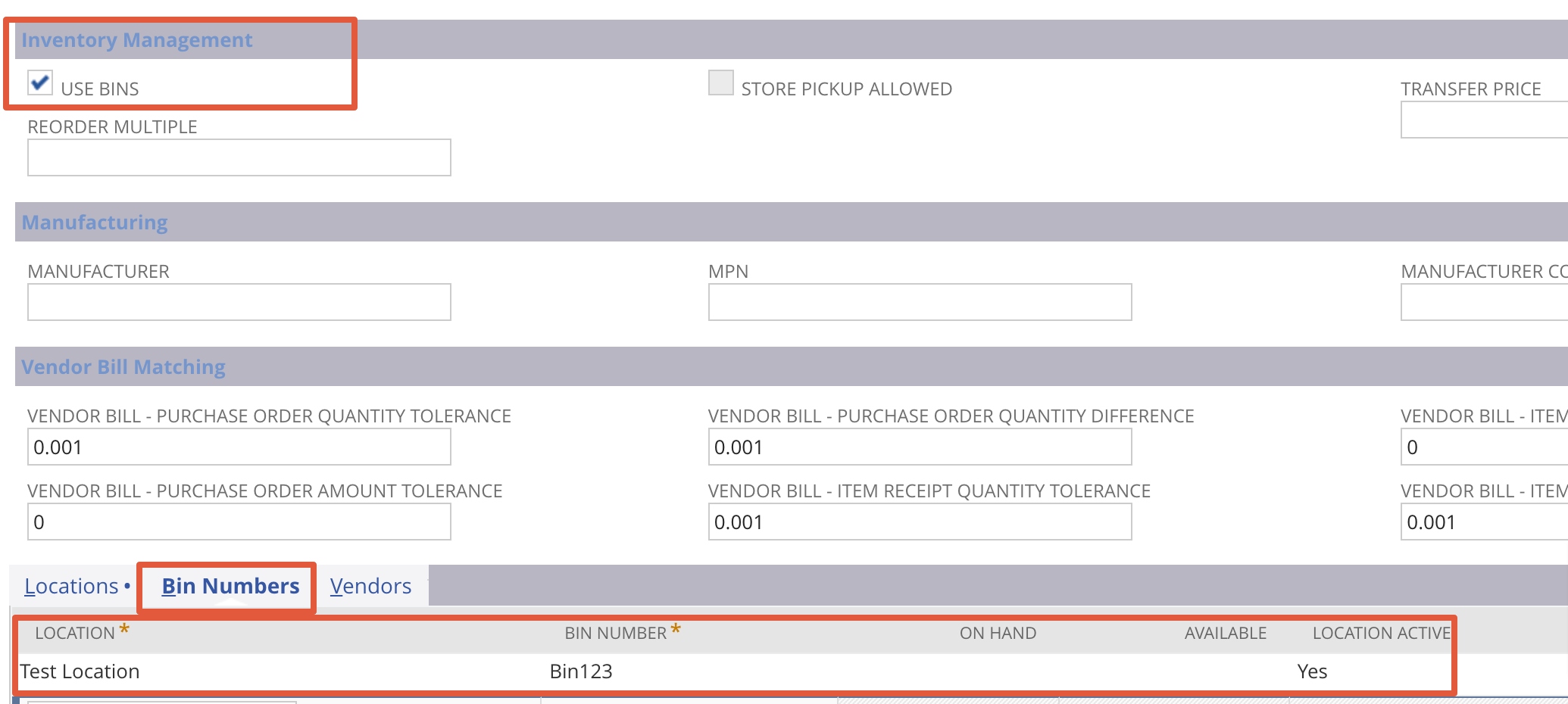
- In the item Master enable the Bin check box under inventory management
- Create new Bin for each locations Goto - Lists - Supply chain - Bin New
- Map the bin numbers in item master under Bin numbers
Once you are done with the above setups you can see the bin number on item receipt inventory configuration window
In addition to that, Generally, Bins requires on transactions where an item quantity is reduced, such as on cash sales, item fulfillments, or negative inventory adjustments.
Bins are not required on transactions where an item quantity is increased, such as purchases and positive inventory adjustments.
If you want to skip the bin nos on item receipt, there is one more accounting preference under Items/Transactions - under the Inventory subtab, you can enable the require bins on all transactions except item receipt
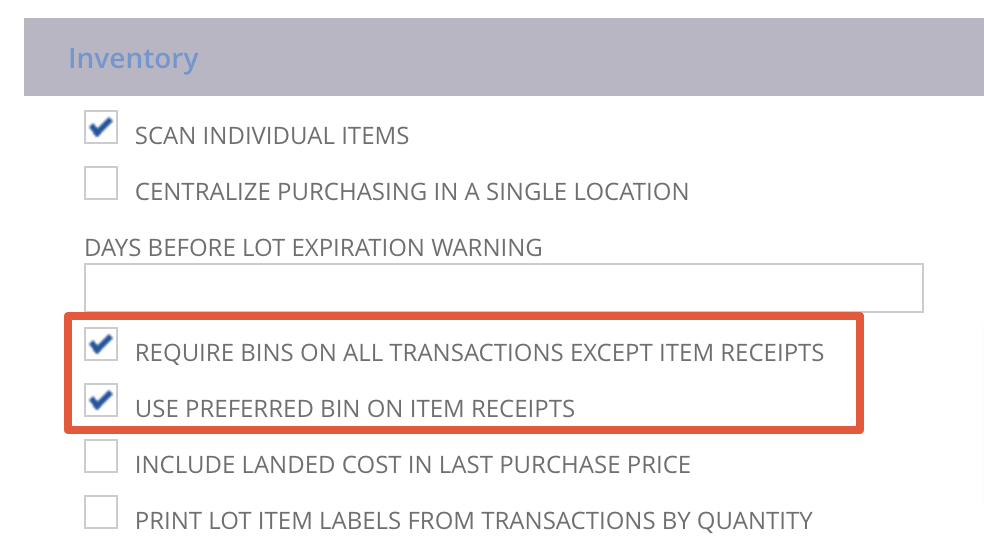
When you enable this preference, the Bin field on item receipts defaults to the preferred bin instead of leaving the field blank.