Best Of
NetSuite Admin Tips: How to Show Subsidiary Base Currency Amount in a Transaction Saved Search

When creating a Saved Search in OneWorld, the amount column from non-parent is automatically converted to the base currency of the Parent Subsidiary. Did you know that you can view these amounts in the base currency of their respective subsidiary and view the original amounts in transactions (for example: Foreign Amounts entered in an Invoice) Here how:
1.) Navigate to List > Search > Saved Searches > New
2.) Select Transaction
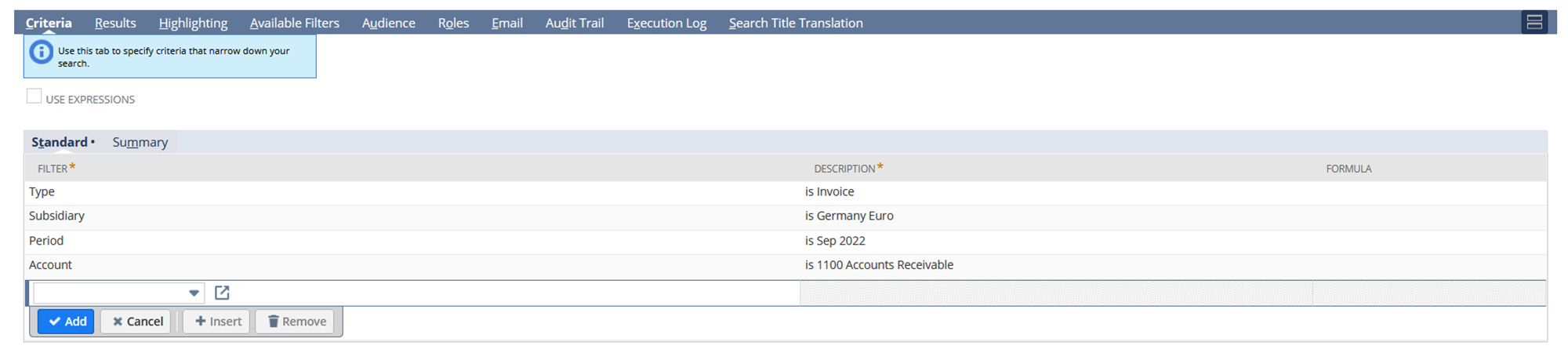
3.) Add a Criteria
Type (Optional) – For your Transaction Type
Subsidiary (Optional) – Select Subsidiary
Period (Optional) – Select an Accounting Period
Account (Optional) - If you wish to view balances of a particular account
4.) Under Results tab set the Consolidated Exchange Rate = None
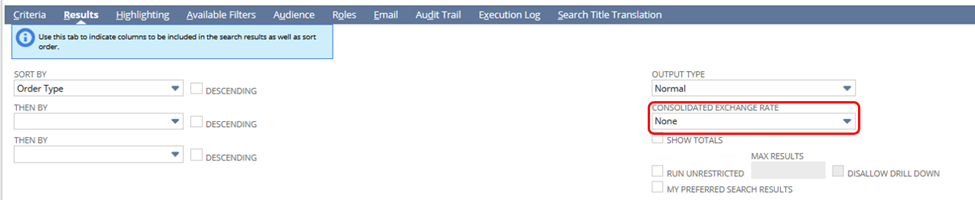
When this is set to None, the Consolidated Exchange Rate is not applied to the Amount, this will make the amount column results to per Subsidiary.
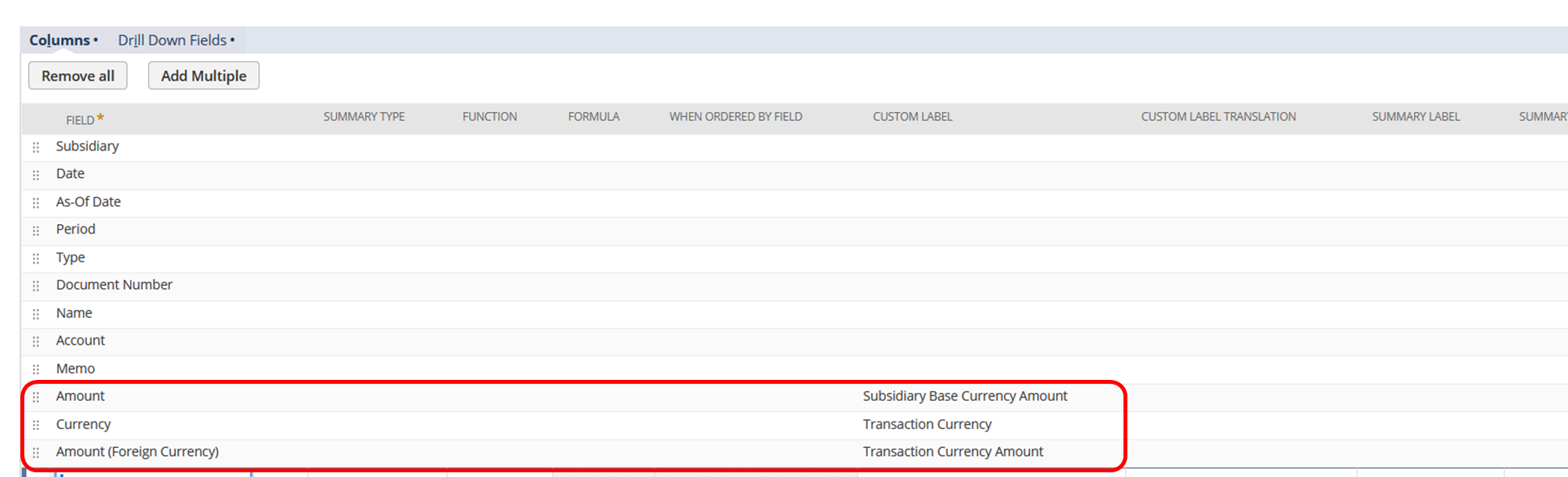
5.) In the Results tab column, make sure that you add these important fields:
Amount – This will be the amount posted in the G/L of the transaction subsidiary. You can rename this to Subsidiary Base Currency Amount
Currency – This the Transaction Currency
Amount (Foreign Currency) – This is the transaction currency, please take note that even if the transaction is posted in the same currency of the subsidiary, this will still column will still have values. You can rename this to Transaction Currency Amount
6.) Rename Saved Search
7.) Save and Run the Report
Results:
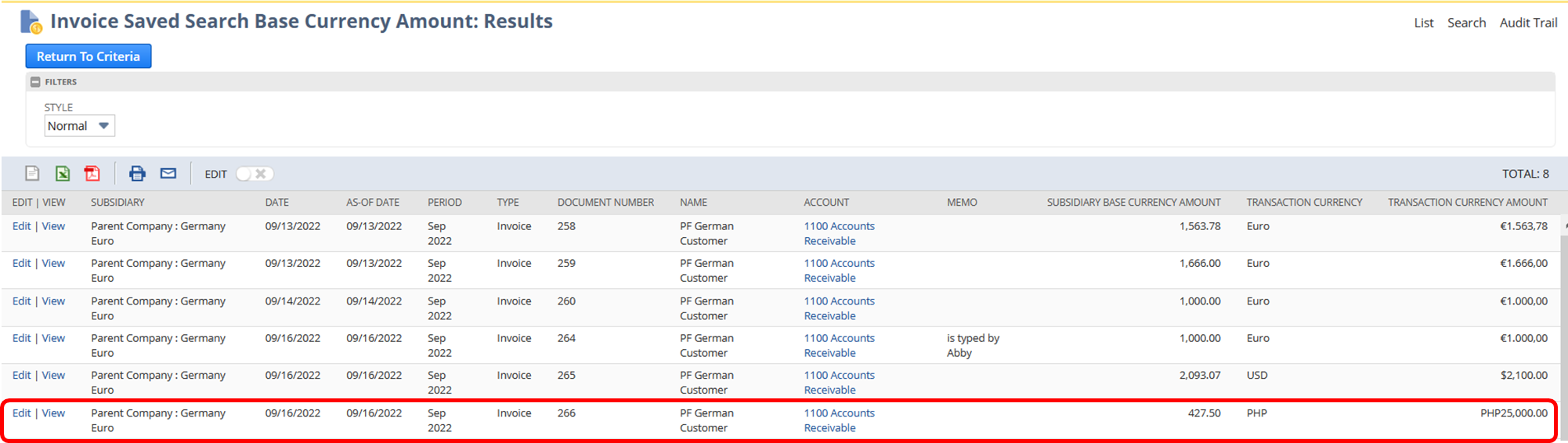
In this example, Invoice # 266 is recorded using Philippine Peso, but it is posted in a German subsidiary with a base currency of Euro. Here is the original transaction:
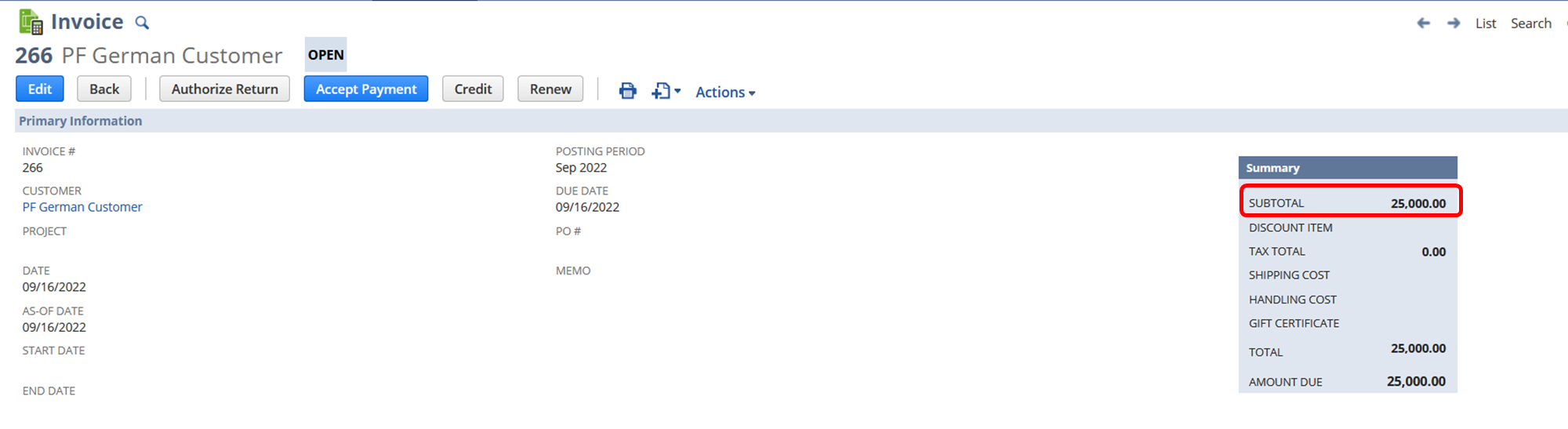
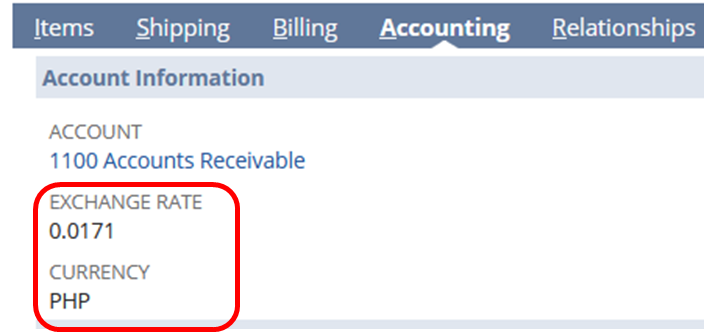
Subsidiary Base Currency Amount is equal to Exchange Rate X Transaction Currency Amount, in this scenario PHP 25,000 X 0.0171 or €427.50 in the G/L Impact
Have you tried this Saved Search? Feel free to share your tips!
I hope this helps 😃

Re: Freemarker Email Template-if logic
I guess best practice would be to make two check boxes as custom body fields on your transaction ("Contains back ordered items", "Contains discontinued items") and have them filled by a script or workflow depending on the contents of the transaction when it is saved.
That is because in Freemarker you can only build up the document from top to bottom in sequence, you can't add something to the top later depending on the contents below.
However, you could use a trick in your template to achieve what you are asking for without adding such body fields. It is probably not good style, though.
To do this, you can use the <#assign> directive:
Declare two variables with an <#assign> at the top of your template. Add one more <#list transaction.item as itemlist> directly below the <#assign>, but don't make it print anything. Instead, inside the <#list> add two <#if> statements that use <#assign> to set the value of your variables if the respective condition is met.
When that "dummy" list is processed at the top, you can use an <#if> around each of your other two <#list> blocks that check for the variable from your previous <#assign>.
 Matrim
Re: Bill Payment file multiple reference numbers
Hello @Dirk Nieuwkamp ,
I would like to clarify this concern. You are referring to the Bill Payments page and creation of the Payments there?
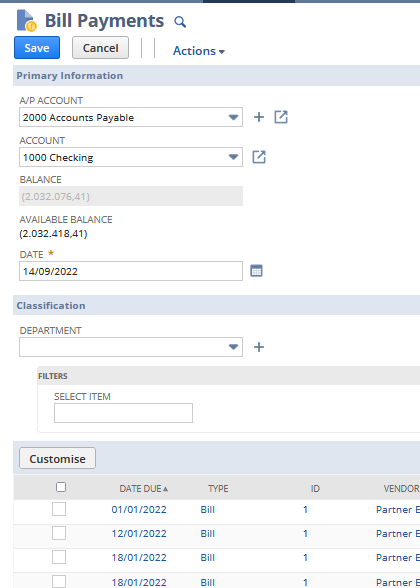
When the system recognize, that the Bill is matching with the Bill Credit, then the system link these transactions and you might see this information under the "Related Records" of the Bill transaction or under the "Apply" tab under the Credit Memo transaction.
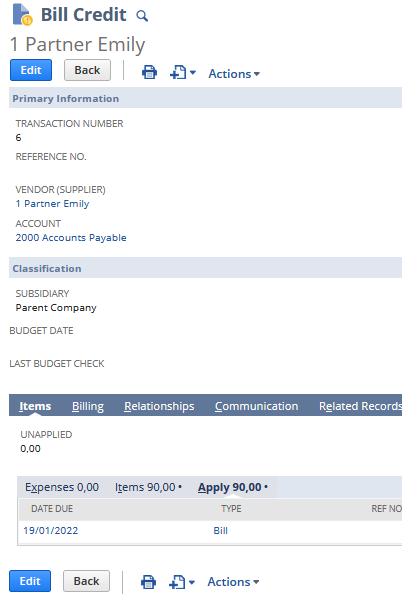
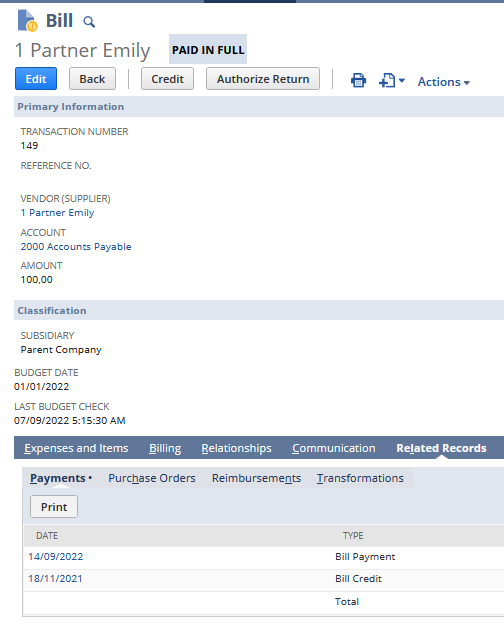
Please, let me know if your concern is about this behavior of the system.
Thank you very much.

Re: Restrict the administrative notifications to specific Admin Users
Hi @Hormese Paul,
By default, it is mandatory to include all admins in Administrative Notifications. I checked for an available enhancement request related to this and found none. I suggest submitting this as a new enhancement at SuiteIdeas.

Re: About the Departmental Transition Chart
How many sales outlet are you looking at. If they are more than 100s, you can leverage custom segment feature as well.

Re: Need to total the sum of all vendor bill(s) amount for a PO
Hi @Preethi Kondur ,
I followed a different approach to get the results. Please see below :
Criteria :
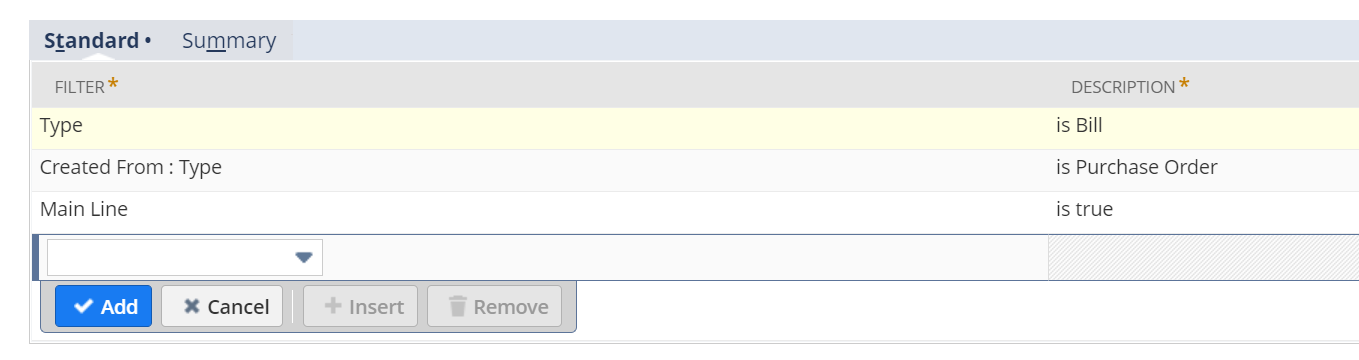
Result Tab:

you can add an additional formula column to get the amount difference.
Re: Items with no transaction for a specific time
1. Navigate to List > Search > Saved Searches > New
2. Select Item
3. Filter:
Select Type : Item type like Inventory, Service as required.
Select Transaction Fields : Type : None
Select Inactive as False
Select Transaction Fields : Date : last 6 month
4 Under Results Tab
Field:
Select Name Summary Type: Select Group
Select Display Name Summary Type: Select Group
Select Internal ID Summary Type : Group
Click Save & Run
NetSuite Admin Tip: How to Put Back Fund on Gift Certificate(GC) with a Cancelled Sales Order

Sample Scenario: On instances where the Sales Order is paid partly by Gift Card and partly by a Credit Card and the Credit Card declined but the Gift Card balance is not enough to cover for the Sales Order total eventually having the Sales Order cancelled, the fund in the Gift Card does not automatically get credited back. Below are the steps to move the fund back to the Gift Card:
- Create a Credit Memo to reflect the unused GC amount
- Create another GC
- Apply the said credit memo
Detailed Steps:
I. Creating a credit memo
1. Go to the Invoice record with which the Gift Certificates were bought.
2. Click Credit button to create a Credit Memo.
3. In the line items you will see all the items bought in that Invoice. Click the line item which has the same code with the Gift Certificate you're having issues with.
4. Hit Save.
Now you have created a Credit Memo for the customer.
You then have to create a GC and apply the Credit Memo you just created.
II. Creating a new GC
1. Create an Invoice
2. Type in the Customer Name
3. Input the GC in the item > Input Amount
4. Hit Save
III. Applying Credit Memo on the Invoice
1. Navigate to Transactions > Customer > Accept > Customer Payments
2. Type in the Customer Name
3. Under the Invoices Tab > Check the Apply box on the Invoice
4. Under the Credits tab > Check the Apply box on the Credit memo
5. Hit Save
Note: If the Payment Method is required, just pick any Payment Method. This will not affect the process.
You can now check the Invoice of the new GC and it would show that it was paid in full. Your customer can now use this new GC on other transactions.
To other members, please feel free to share your thoughts on the thread if you have other ways to put the fund back to the Gift Certificate with a cancelled Sales Order.

Re: save search - item availability today formulas help
Hello Gabriel,
You can use the the second formula (Using Partition by) explained in the below post
https://community.oracle.com/netsuite/discussion/4476066/add-running-balance-column-in-saved-search
But first, I suggest to create a custom body field (Formula) to help you flag the transactions that need to be included in the formula.
To summarize,
- Create a transaction body field (Non Store) and make a formula using CASE WHEN to flag the sales orders with QTY committed ZERO.
- Create a formula column in the saved search (Over Function using partition by, as explained in the mentioned post).
I hope this would help!
 Ibraam
Re: Price difference between Purchase Order and Item Receipt
Hello @Dirk Nieuwkamp,
Per my understanding, you want the rate on the Item Receipt to be sourced from the Last Purchase Price on the Item record and not from the rate on the Purchase Order.
Upon checking, the expected behavior is possible via Workflow. Kindly reach out to your in-house developers for the creation of one as Support team cannot assist on creation of a Workflow from scratch.
I hope this helps. Thank you. 😊
