Best Of

NSC | Show More Rows in NetSuite Saved Searches

Users can control how many records appear at once in NetSuite list views and saved searches, making it easier to browse and locate data without constantly moving between pages.
By default, NetSuite often displays only 50 records at a time, but this limit can be increased through personal preferences. Adjusting the number of rows displayed can improve efficiency when reviewing large result sets or working with extensive saved searches.
This feature is especially useful for users who regularly work with high-volume transaction lists, customer records, or search results and want to reduce paging while staying within the same workflow.
How It Works:
- Go to Home > Set Preferences
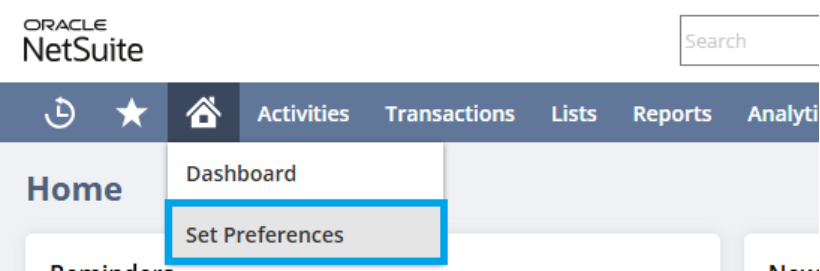
2. Under General > Optimizing NetSuite, locate Number of Rows in List Segments
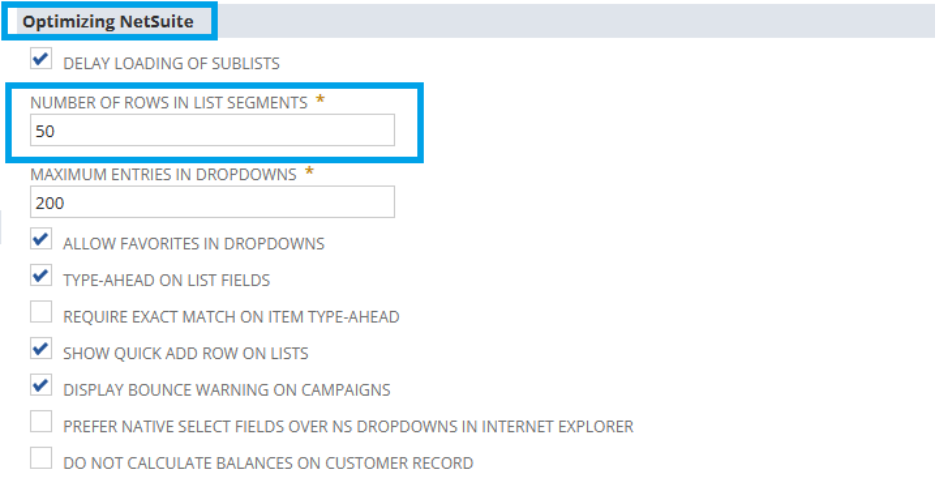
3. Enter your preferred value (minimum 5, maximum 1000)
4. Click Save
Stay updated by following the category Analytics > Saved Searches Hub to receive updates whenever new articles are released.

Re: Customized Balance Sheet report
Thank you @Tigran Shahnazaryan and @Jolly Ann Buhay-Oracle for your input!
Much appreciated.

Re: Defect? DKIM for domain name status shows "Ready", but DKIM validation fails
Hi @MJ NCO
The status should not be set to "Ready" if the CNAME is invalid. I recommend creating a support case so this can be investigated thoroughly. Please let me know if you need help creating one.

Re: June 3, 2026 | Question of the Week
Time's up, everyone!
Kindly see details below for the correct answer and its explanation:
Correct Answer: C. Journal entries
Explanation:
You can select an elimination subsidiary only for journal entries, not for other transactions.
A journal entry that is associated with an elimination subsidiary is a normal journal entry, not an advanced intercompany journal entry. You can't select an elimination subsidiary on a bank account record or a credit card account record.
Check out this SuiteAnswers article 9867 Elimination Subsidiaries for further information.
Check out other helpful articles on our New to NetSuite page and make the most out of your NetSuite journey.
—
Thank you to everyone who participated. Good job to everyone who got the correct answer!
We hope you learned something. We are now closing this thread. We hope to see you again in the next weekly challenge.
Follow Community Whiz for updates.

Re: CSV Upload for 150K Records.
Hello,
NetSuite does not provide a fixed processing time for 150K CSV records. According to documentation, each CSV import job is limited to 25,000 records or 50 MB, so 150K records must be split into at least six import jobs. It also note that imports may be slow when the account is busy or when the file has many records, and recommends breaking large files into smaller jobs.
If server-side SuiteScript and workflows are enabled, it states that this slows the save process. Because of these variables, the best approach is to test with 5K or 10K records, then estimate the timing for the full 150K import.
For more information, visit the following articles
- CSV Import FAQ
- General CSV File Conventions
- Setting CSV Import Preferences
- Use Multiple Threads and Multiple Queues to Run CSV Import Jobs
- CSV Imports Overview
Anyone from the community who might had the same need or same concern? Any insights you can provide would be highly appreciated. Thank you!

Re: Help Troubleshooting Strange Expense Report Issue
I think you were right to log a support ticket, it sounds like something they're making changes on the backend. Especially with the behaviour changing despite you not making any changes.
I remember once they made changes that completely broke Customer Segments on our SuiteCommerce Webstore until they reverted the change they had made regarding caching. Though this did occur during a minor release, so it was perhaps more obvious that the issue likely came from the update.
 Dext3r
Re: Financial Reports
Hi Ian, thank you for this information. This helped resolve the issue.

Re: Can I use multiple departments combined with one GL code to roll these up into multi report lines?
Hi @User 90210-Oracle ,
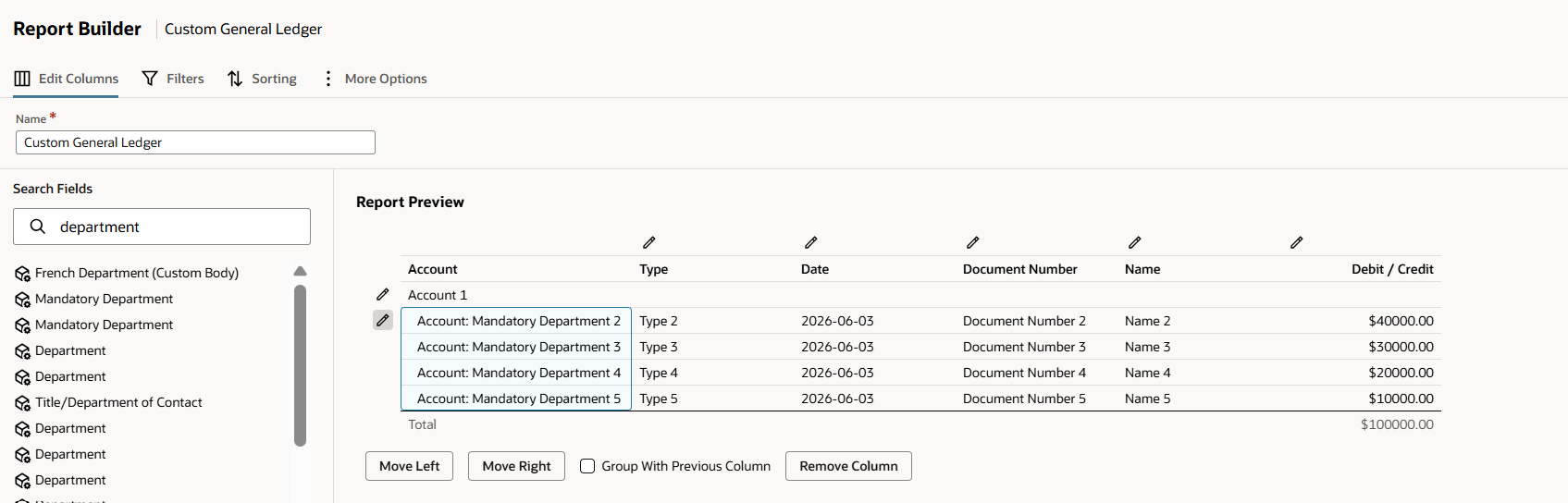
Do you mean like this?
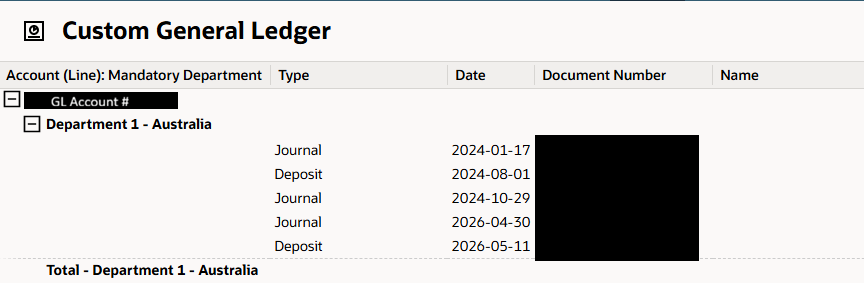
Per my testing, I used Custom General Ledger Report but you can also try these steps for other custom reports.
- Start by opening the report you wish to customize. Then click Customize
- On the Report Builder, under Edit Columns tab look for Department, you may need to trial and error here as it will show you multiple fields that relates to Department.
- You may drag the Department filed under the GL Account, and it should look like this:
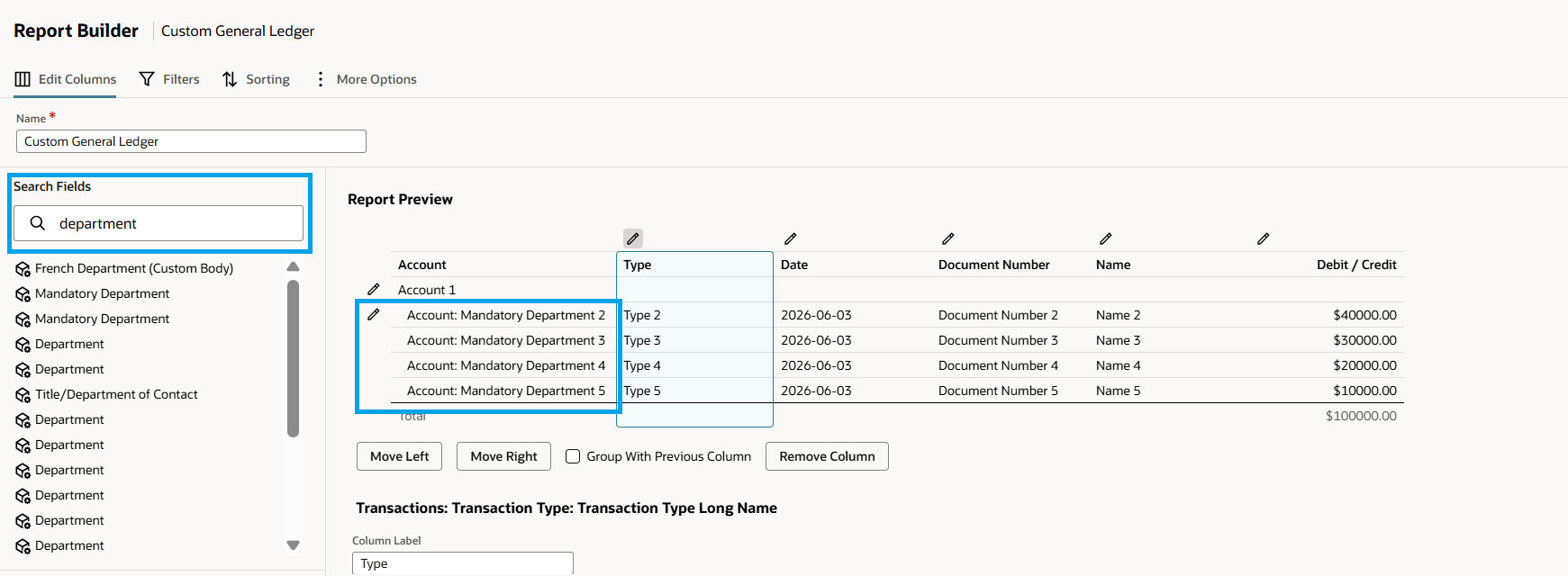
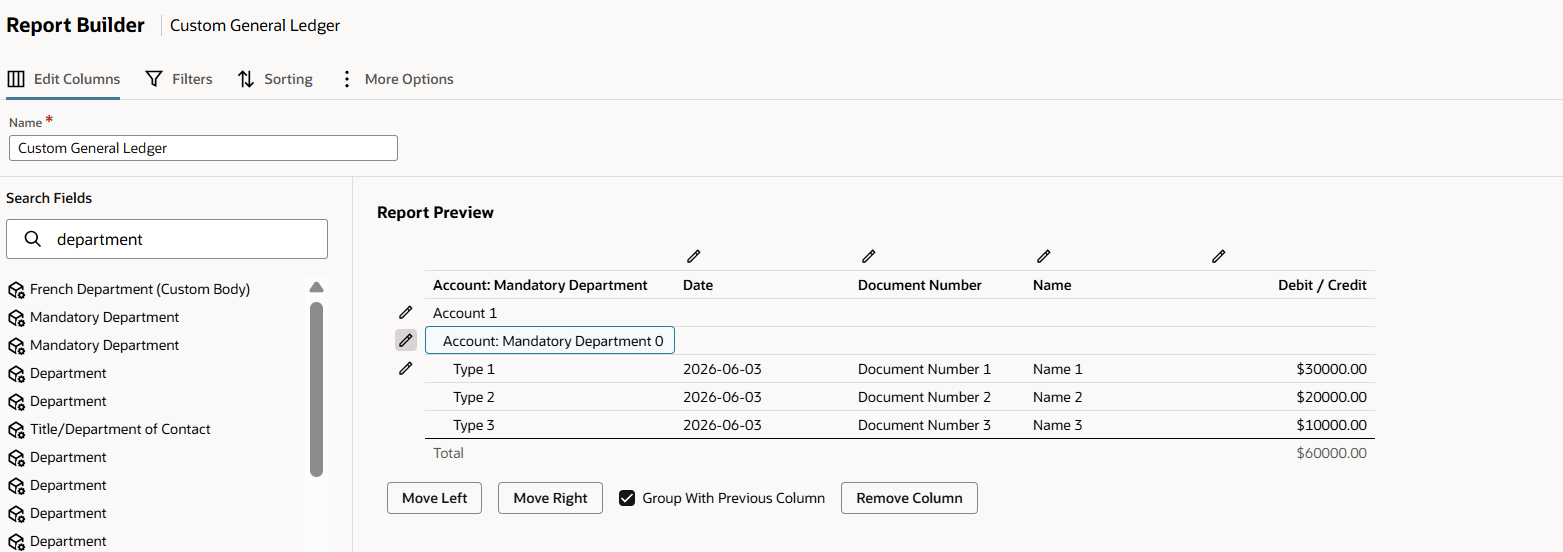
- Select the the Department on the Report Preview and it should be highlighted. Then mark the Group with Previous Column checkbox. It should look like this:
- Click Save.
The report should look like the image at the top. Let me know if this works on your end.
Regards,
Ayie

Re: Issue with PO Approval Workflow – Missing Submit for Approval Button
Hi @Cher Xiang if you satisfied with my comment can you please accept my answer.