Narrative Insights is Temporarily Unavailable due to an Infrastructure Issue. Learn how This Impacts Your Account and What to Expect While the Feature is Disabled.
Best Of
Re: Mexico Localization 2.09.0 missing CFDI
Please note the following as well. Please check the Help page for Records Supporting LRCFM by Localization Assistant SuiteApp and note the other record types that can be affected. I found that Cash Sale definitely needed to be adjusted in the same manner in order to issue the Mexico Factura Electronica

Mexico Localization 2.09.0 missing CFDI
Installed the newest CFDI 4.0 Mexico localization package this morning and most of the CFDI fields (Mexico tax authority required fields) went missing on sales forms. I could not find it but kudos to Support for finding a conflict with the NS Localization Assistant which is supposed to be used with Mexico.
The response from Support is as follows - Given that I doubt I would have found this on my own, and these are critical fields for Mexico, I'm sharing the fix here.
After investigating in our QA environment this is what I notice:
- Account [deleted] has Mexico Localization bundle version 2.09.0 upgraded 9/6/2022 11:03 am.
- Navigate to Invoice Record > CFDI Information tab > no information.
- Navigate to Customization > Scripting > Scripted Records > Edit Invoice
- Undeployed following scripts under User Event Script:
- LRC Field Manager User Event | Owner: Barbara J Brant
- Save.
- Undeployed following scripts under User Event Script:
- Navigate to Invoice Record > CFDI Information tab > information is displayed.
Disabling this script in Customization > Scripting > Scripted Records the issue does not reproduce. For this reason, it is suggested that you refer to the creators of these scripts in order to review this behavior.
Re: Is there is any option to add permission into Custom Center Custom Roles
According to Answer ID: 48751, User Roles is not fully scriptable. Only search is permitted through scripting.
I also couldn't find User Role as a Supported Record Type for CSV.

Re: How to Import invoices tied to Subprojects
We use subprojects as well in our company and issue invoices for the subprojects. Here's how we manage it successfully in the UI:
On the Customer ('entity') field, we set the main customer record. (In CSV, it's the internal ID of the main customer.
On the Project, ('job') field, we set the subproject. (In CSV, it's the internal id of the subproject).
If this didn't work, you can try sending screenshots of how the customer and subproject is linked, and the CSV template you're using.
NetSuite Admin Tip: How to Publish Item Saved Search on Customer Center Role

An enhancement is currently logged under #111431 | Customer Dashboard: Be Able to Publish Customer Dashboard to Other Users/Roles Same as (Center Tab) Dashboard and as a workaround, you can utilize the SiteBuilder module to publish the items search to your Customer Center role. See the steps below.
Prerequisite: SiteBuilder Module is present, and feature must be enabled. (Paid module)
Navigate to Setup > Company > Enable Features > Web Presence tab and see if Web Site and Site Builder are available.
Step I: Create Presentation tab
1. Navigate to Commerce tab > Site Builder > Tabs > New
2. Select New Presentation Tab
3. Enter Label
4. Display in Website = False
5. Navigate to Audience tab > Select the role
6. Click Save
Step II: Publish the Saved Search
1. Navigate to Commerce tab > Site Builder > Publish Saved Search
2. Enter Title
3. In Search field, Locate the saved search
4. Enter Site
5. Subcategory of: Enter the name of the Presentation tab created in Step I
6. Display in Website = False
7. Navigate to Audience tab > Select the role
8. Click Save
9. Log in as customer to test.
Got some insight or other workaround that is currently working in your environment? Please feel free to share your thoughts in the comment section.

Re: Transaction Workflow to change line item field with item record conditions
Hi @Kristoffer Viray-Oracle thank you for your reply,
in the end i figured it out what i had to do to achieve my required result. I had to create Custom column item and source the information from Custom item field
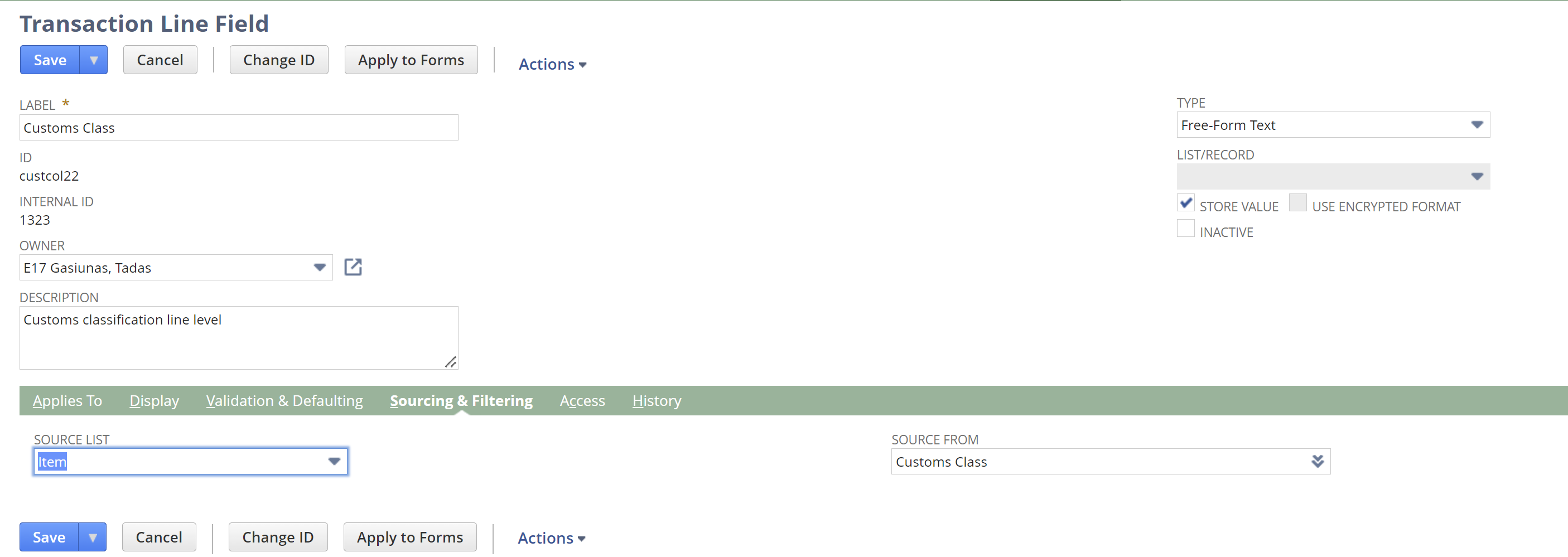
then, add that custom column item field on to sales order line items and it would appear as a condition in the workflow option
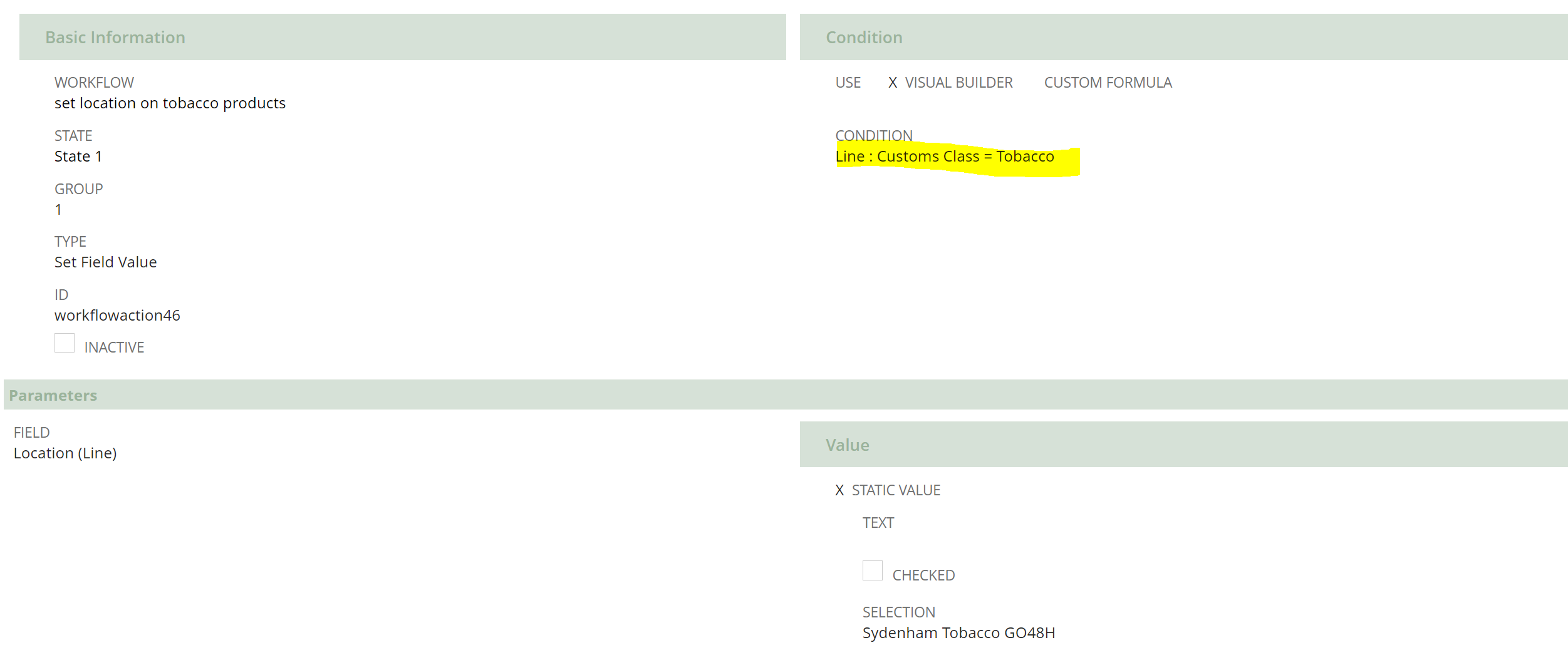
i have tested and the imported sales order transaction has location changed via workflow
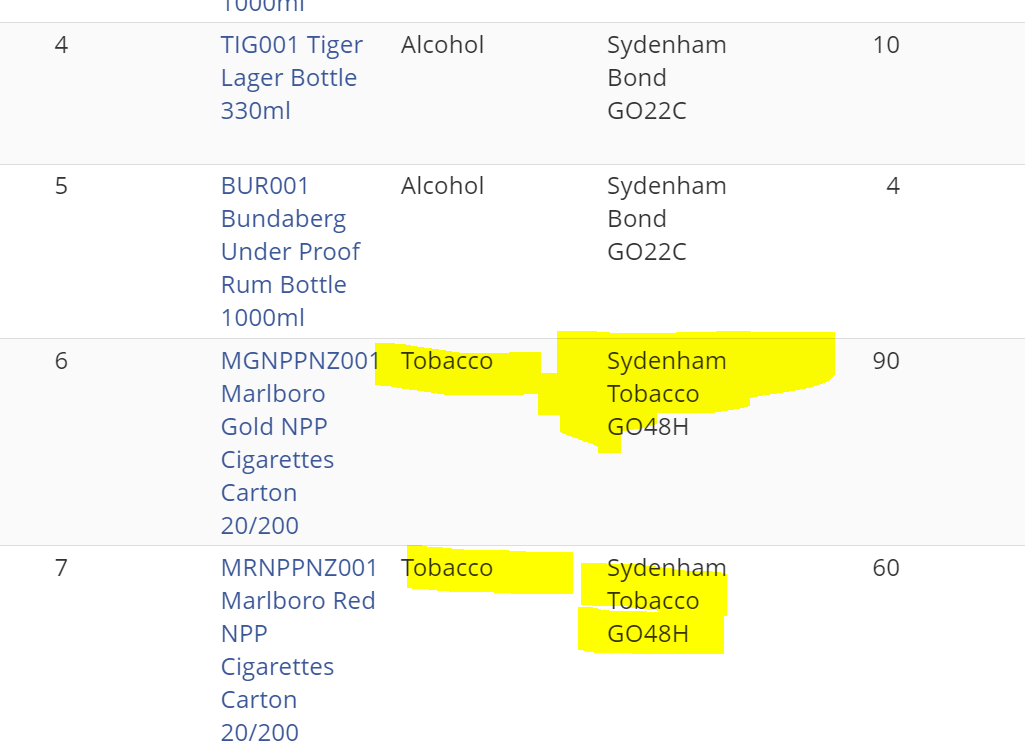
sweet.
have a good one and thank you for yor help and time.
Tadas
Re: Selling a set of items
Yes, if you use an item type of "Kit/Package" you can sell the set but fulfill using the individual inventory items

Re: Month End Currency Revaluation not revaluing
Hi @Muzzyelk,
That is correct if your Vendor 3188 is an Intercompany Vendor, then it should only be attached to Accounts Payable marked for elimination.
I hope this helps 🙂
Re: REST API Authentication
I rebuilt everything again. I created a new user access token using a different role from one that has core admin rights and also set the account id to use upper case letters for the company sandbox account "123456_SB1" instead of "sb1" and this time it worked.
Re: Exchange rate field on Advanced Intercompany Journal Entry
Adding additional line is great but comes with only challenge at the time of Bank reconciliation. During reconciliation, System will show this as 1 line or just 1 JE instead of JE with multiple lines. Apart from this we should be all good.
